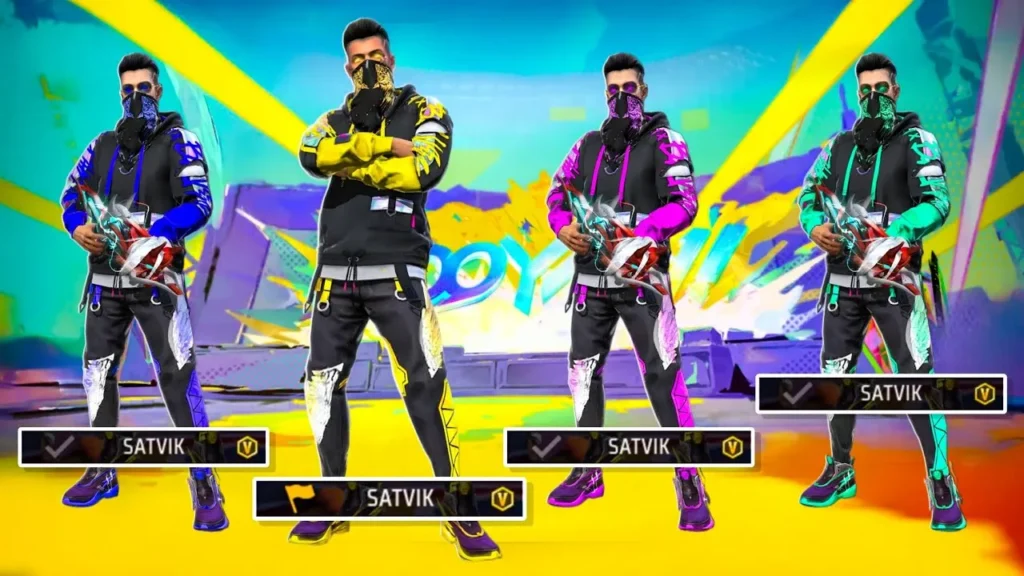
Free Fire Custom Room — How to Create, Settings & Rules Fully Explained
Every serious Free Fire player eventually needs the same thing — a free fire custom room where they control the rules, the players, and the entire match experience. Whether you are organizing a tournament for your Discord community, running daily scrims with your squad, practicing 1v1 battles against a friend, or streaming custom matches for your audience, the custom room feature is what makes it all possible.
But here is the problem. Most guides only tell you how to press the “Create” button. They skip the part that actually matters — the detailed settings, the advance configurations, the tournament-ready rule sets, and the strategies that separate a chaotic lobby from a clean, competitive match.
This guide covers everything. From getting your first room card to configuring spectator slots for a 48-player tournament, every free fire custom room setting is explained in detail so you never have to guess what each option does.
What Is a Custom Room in Free Fire?
A custom room is a private match lobby in Free Fire where the room creator (host) has full control over the match settings. Unlike regular matchmaking where you are dropped into random lobbies with random players, a custom room lets you decide:
- Which map to play on
- Which game mode to use (Battle Royale, Clash Squad, or others)
- How many players can join
- Whether the match is Solo, Duo, or Squad
- Specific gameplay rules like weapon restrictions, HP modifications, and zone speed
- Who can spectate and what they can see
- A password to keep the room private
Only players who have the Room ID and password (if set) can join your lobby. This makes custom rooms perfect for organized events, competitive scrims, content creation, and private practice sessions.
The key thing to understand is that custom rooms do not award XP or rank points. They exist purely for private gameplay, practice, and competition outside the ranked system. If your goal is to level up your account, check our guide on how to increase level in free fire instead.
How to Get a Custom Room Card in Free Fire
You cannot create a free fire custom room without a Custom Room Card. This is the single requirement that blocks most players — you need one card each time you want to host a room (unless you have a time-limited card that allows unlimited rooms within its duration).
Method 1: Buy with Diamonds (100 Diamonds)
The fastest way to get a room card is purchasing one from the in-game store:
- Open Free Fire and go to the main lobby
- Tap the Store icon
- Go to the Items tab under Normal
- Find the Custom Room Card in the list
- Tap Purchase — it costs 100 diamonds per card
Each standard room card is consumed after a single use. Once you create a room and the match ends, the card is gone. This makes it roughly ₹80-100 per room depending on your diamond top-up rates. If you need the best diamond deals, check our diamond top-up discounts page.
Method 2: Guild Dog Tags (Free Method)
This is the best free method. If you are in an active guild, your guild earns Dog Tags every week through regular gameplay. When the guild collectively reaches 1,800 Dog Tags in a week, a Custom Room Card becomes available as a weekly reward that members can claim.
For this to work:
- You need to be in a Level 4+ guild with active members
- All members should play regularly during the week to earn Dog Tags
- The more squad matches you play, the more Dog Tags you earn
This is why joining a strong, active guild is so important in Free Fire. Not sure how? Read our Free Fire Guild guide for everything you need to know.
Method 3: In-Game Events (Limited Time)
Garena occasionally runs events where free room cards are given away. These are usually time-limited cards (2-hour or 6-hour duration) that allow unlimited room creation during their active window. Keep checking the Events section in your lobby daily — these offers appear during OB updates, celebrations, and collaboration events.
Method 4: Advance Room Card (100 Diamonds)
The Advance Room Card was introduced in the OB27 update and offers more customization options than the standard card. It costs the same 100 diamonds but provides access to advanced settings like HP modification, movement speed changes, weapon restrictions, and more. For tournament organizers, the Advance Room Card is the one you want.
Types of Room Cards Available
| Card Type | Cost | Duration | Use Case |
|---|---|---|---|
| Standard Room Card | 100 diamonds | Single use | Casual custom matches |
| Advance Room Card | 100 diamonds | Single use | Tournaments, scrims, competitive play |
| Time-Limited Card (2hr/6hr) | Free (events) | 2 or 6 hours unlimited | Batch hosting, events, streams |
| Guild Reward Card | Free (Dog Tags) | Single use | Weekly free option for guild members |
How to Create a Custom Room — Step by Step
Once you have a room card, follow these steps to create your free fire custom room:
Step 1: Open Free Fire and go to the main lobby.
Step 2: Tap the mode selection button (above the Start button). You will see options like Battle Royale, Clash Squad, etc.
Step 3: Look for the Custom option at the bottom right of the mode selection screen. Tap it.
Step 4: Tap Create to start building your room. The game will prompt you to use a Custom Room Card.
Step 5: Configure your room settings:
- Room Name — Give your room a name players will recognize (e.g., “Friday Night Tournament” or “Squad Scrims”)
- Password — Set a password so only invited players can join. Essential for private matches and tournaments
- Game Mode — Choose from Battle Royale, Clash Squad, or other available modes
- Map — Select your preferred map (Bermuda, Kalahari, Purgatory, Alpine, NeXTerra, or Bermuda Remastered depending on mode)
- Team Mode — Solo, Duo, or Squad
- Max Players — Set the player cap (up to 48 in Battle Royale)
- Spectator Slots — Decide how many spectators can watch the match
- Minimum Level Requirement — Set a minimum account level for joining players
Step 6: Review all settings and tap Create Room.
Step 7: Your room is now live. You will receive a Room ID and can share it (along with the password) with players via WhatsApp, Discord, Telegram, or any messaging platform. Players use this ID and password to join your lobby.
Step 8: Once enough players have joined and are ready, tap Start to begin the match.
Important: For Classic Battle Royale mode, you need a minimum of 10 players in the lobby before the match can start. Clash Squad requires fewer players.
Custom Room Settings Explained in Detail
This is the section most guides skip entirely. Every setting in the free fire custom room interface affects the match differently. Here is a complete breakdown:
Basic Settings
Room Name: A label visible to anyone joining. Use something descriptive — “Guild Scrim Week 5” or “1v1 Shotgun Only” — so players know what to expect.
Password: Always set one for competitive matches. Share it only with registered participants. For public custom rooms (like YouTube live events), you can share the password publicly but expect the lobby to fill fast.
Game Mode Options:
- Battle Royale — Classic survival mode, up to 48 players, multiple maps
- Clash Squad — Fast 4v4 round-based combat, ideal for competitive tournaments
- Lone Wolf — 1v1 or 2v2 arena mode
- Team Deathmatch — Quick respawn combat
Map Choices (Battle Royale):
- Bermuda — The most popular and balanced map; standard for tournaments
- Bermuda Remastered — Updated version with visual improvements
- Kalahari — Desert map, more open terrain, favors long-range combat
- Purgatory — Water-heavy map with unique terrain
- Alpine — Snowy map, released later
- NeXTerra — Futuristic map with unique environmental features
For tournaments, the standard practice is to rotate between Bermuda, Kalahari, and Purgatory across multiple matches. Bermuda is almost always used for at least one round because of its balanced design.
Team Mode: Solo, Duo, or Squad. Tournament standard is Squad (4 players per team). For 1v1 challenges, select Solo.
Max Players: Depends on the map and mode. Battle Royale supports up to 48 players (12 squads of 4). Clash Squad maxes out at 8 players (2 teams of 4).
Minimum Level: You can set a minimum account level for joining. Tournament organizers sometimes set this to Level 10 or higher to filter out brand new accounts.
Advance Settings (Advance Room Card Only)

This is where the real customization happens. The Advance Room Card unlocks these additional options:
HP (Hit Points): Adjust the starting health of all players. Default is 200 HP. You can increase or decrease this to create custom game modes — higher HP makes fights last longer, lower HP makes them more lethal.
EP (Energy Points): Set the starting energy points. EP converts to HP over time, so adjusting this affects early-game survivability.
Movement Speed: Modify how fast players move. Increasing this creates a faster, more arcade-like experience. Default is standard speed.
Jump Height: Change how high players can jump. Combined with movement speed changes, this can create completely different gameplay feels.
Air Drops: Enable or disable air drops during the match. Disabling them forces players to use only ground loot, which is common in competitive scrims.
Vehicles: Allow or disallow vehicles. Many competitive formats disable vehicles to emphasize positioning and gunplay over mobility.
Weapon Restrictions: This is huge for tournament organizers. You can restrict specific weapon categories:
- Disable shotguns for long-range-only matches
- Disable snipers for close-quarters combat scrims
- Allow only SMGs and ARs for balanced competitive play
- Create “shotgun only” or “sniper only” fun matches
Ammo Settings: Adjust ammo availability. “Unlimited Ammo” is popular for Clash Squad custom rooms, especially in 1v1 scenarios.
Character Skills: Enable or disable character skills entirely. Most competitive tournaments disable character skills to ensure matches are decided by pure gunplay and strategy, not ability advantages. This is a critical setting that many casual hosts forget to adjust.
Revival Points: Allow or disable revival towers/points. Disabling them makes knockdowns more punishing and adds tactical weight to every engagement.
Throwable Items: Some tournaments disable grenades and throwables to focus purely on gunplay. This is common in Clash Squad competitive formats.
Starting Money (Clash Squad): Set how much money each player starts with in CS rounds. Adjusting this affects weapon buy strategies.
Round Money (Clash Squad): Control how much money players earn per round. Higher round money means faster access to better weapons.
Spectator Settings
Spectator configuration matters a lot for tournaments, streams, and content creation:
Spectator Slots: Set how many people can watch without playing. For tournament streams, you want enough slots for referees, commentators, and possibly a stream observer.
Spectator View Options: Control what spectators can see:
- Own team only — Spectators can only watch their own team’s perspective
- All players — Spectators can switch between any player’s POV
- Free camera — Spectators have full camera control (best for streamers and casters)
For competitive matches, restrict spectator view to “own team only” to prevent ghosting (sharing enemy positions with teammates). Only tournament staff and referees should have full spectator access.
Tournament-Ready Custom Room Settings
If you are organizing a tournament, here are the recommended settings used by most esports organizers and community tournament hosts:
Standard Battle Royale Tournament Settings
| Setting | Recommended Value |
|---|---|
| Game Mode | Battle Royale |
| Map | Bermuda (primary), Kalahari, Purgatory (rotation) |
| Team Mode | Squad (4 players) |
| Max Players | 48 (12 squads) |
| Character Skills | OFF (ensures fair play) |
| Vehicles | OFF or ON (organizer’s choice) |
| Air Drops | ON |
| Weapon Restrictions | None (all weapons allowed) |
| Spectator Access | Referees only; players see own team only |
| Minimum Level | Level 10+ |
| Password | Required |
Standard Clash Squad Tournament Settings
| Setting | Recommended Value |
|---|---|
| Game Mode | Clash Squad |
| Map | Bermuda |
| Team Mode | Squad (4v4) |
| Ammo | Unlimited |
| Character Skills | OFF |
| Throwables | OFF (common in competitive) |
| Starting Money | Default or custom |
| Rounds to Win | 4 (standard) |
Tournament Scoring System
The standard free fire custom room tournament scoring follows this widely used point system:
Placement Points (Battle Royale):
| Position | Points |
|---|---|
| 1st (Booyah) | 12 |
| 2nd | 9 |
| 3rd | 8 |
| 4th | 7 |
| 5th | 6 |
| 6th | 5 |
| 7th | 4 |
| 8th | 3 |
| 9th | 2 |
| 10th | 1 |
| 11th-12th | 0 |
Kill Points: 1 point per kill
Total Match Score = Placement Points + Kill Points
In multi-match tournaments (3-6 matches per round), all match scores are added together. The teams with the highest combined scores advance. For tiebreakers, the standard order is: total Booyahs first, then total kills, then placement in the most recent match.
This scoring system encourages teams to balance aggressive play (chasing kills) with smart survival (securing high placement). It is the same format used in official Garena FFWS (Free Fire World Series) events and most community tournaments worldwide.
How to Join a Custom Room
Joining someone else’s free fire custom room is simple:
- Open Free Fire and go to the main lobby
- Tap the mode selection button
- Select Custom at the bottom right
- Tap Join Room
- Enter the Room ID shared by the host
- Enter the password if required
- Tap Join to enter the waiting lobby
- Wait for the host to start the match
You do not need a Custom Room Card to join someone else’s room. Only the host needs the card. This means even free-to-play players with zero diamonds can participate in custom room matches — they just cannot host.
Best Use Cases for Custom Rooms
Tournament Hosting
Custom rooms are the backbone of the entire Free Fire competitive community. From small Discord tournaments with 12 teams to large-scale events with hundreds of participants, every organized competition runs through custom rooms.
If you want to host a tournament, here is a quick checklist:
- Get enough Advance Room Cards (one per match)
- Set up a Discord or WhatsApp group for coordination
- Define your rules and scoring system clearly before the event
- Appoint referees with spectator access
- Require screenshot submissions from all teams after each match
- Set a strict schedule — disqualify teams that are late (standard is 10-minute grace period)
For inspiration on competitive play, check out how pro esports players approach tournament preparation.
Scrims (Practice Matches)
Scrims are practice matches between organized teams that simulate tournament conditions. Most competitive Free Fire squads run daily or weekly scrims in custom rooms to:
- Practice drop spots and rotations on specific maps
- Test team coordination and callouts
- Experiment with different weapon loadouts
- Build chemistry with teammates
For scrims, use tournament-standard settings (character skills off, spectators restricted) so the practice feels authentic.
1v1 Challenges
Custom rooms are the go-to for settling 1v1 disputes with friends. For the best 1v1 experience:
- Use Clash Squad mode
- Set max players to 2
- Pick a smaller map section like Bermuda
- Enable unlimited ammo
- Disable character skills for pure gunplay
Mastering your headshot accuracy and drag headshot technique will give you a massive edge in 1v1 battles.
Content Creation & Streaming
YouTubers and streamers frequently host custom rooms for community engagement. If you are a content creator:
- Set your room to public (share the password on stream)
- Use a catchy room name
- Set spectator slots high so viewers who die can still watch
- Consider fun rule sets like “shotgun only” or “no healing items” to keep content interesting
- Record matches for highlight reels
Follow us on Instagram and YouTube at @freefirenationofficial for custom room events and community tournaments.
Common Mistakes When Hosting Custom Rooms
Forgetting to set a password: Your lobby will fill with random players instantly. Always password-protect competitive rooms.
Not disabling character skills in tournaments: Character abilities create unfair advantages. Serious competitive matches should always have skills disabled.
Allowing full spectator access: Restrict spectator views to prevent ghosting. Only referees should see all player perspectives.
Starting with too few players: Battle Royale customs need at least 10 players. Waiting for more teams makes the match more competitive and realistic.
Not collecting screenshots: Without end-screen screenshots, resolving scoring disputes is impossible. Make it mandatory for all participants.
Using standard room card for competitive matches: The standard card lacks advance settings. Always use an Advance Room Card for tournaments and scrims where you need full control over game rules.
Custom Room vs Ranked vs Classic — Key Differences
| Feature | Custom Room | Ranked | Classic |
|---|---|---|---|
| XP Earned | None | Yes (highest) | Yes |
| Rank Points | None | Yes | No |
| Player Control | Full (host decides) | None (matchmaking) | None (matchmaking) |
| Map Choice | Yes | Rotation | Rotation |
| Rule Customization | Yes (advance settings) | No | No |
| Room Card Required | Yes (to host) | No | No |
| Minimum Players (BR) | 10 | Automatic fill | Automatic fill |
The main tradeoff is clear: custom rooms give you complete control but zero progression rewards. They exist for practice, competition, and fun — not for leveling up or pushing rank. If you want to rank up faster or push your competitive tier, stick to Ranked mode.
Pro Tips for Running Clean Custom Room Events
Use Discord for all communication. Discord allows voice channels, text updates, and file sharing (for screenshots). It is the standard platform for Free Fire tournament coordination.
Post rules BEFORE the event. Write a clear rulebook covering team size, scoring, allowed devices (mobile only — no emulators), screenshot requirements, punctuality rules, and penalties for cheating. Share it at least 24 hours before the event.
Appoint dedicated referees. Have at least one referee per match with full spectator access. Their job is to monitor for rule violations, teaming, and suspicious behavior.
Record every match. Screen record from the spectator view as backup evidence in case of disputes. This is non-negotiable for prize-pool tournaments.
Randomize map order. Do not let teams know which map comes first. Random map selection keeps preparation fair and tests team versatility.
Set a strict 10-minute check-in window. If a team is not in the lobby within 10 minutes of the scheduled start time, they forfeit. This keeps the event on schedule and respects everyone’s time.
Frequently Asked Questions
How much does a Custom Room Card cost in Free Fire?
A Custom Room Card costs 100 diamonds in the in-game store. This is for a single-use standard card or an Advance Room Card. Time-limited cards (2-hour or 6-hour unlimited use) are occasionally available for free through in-game events.
Can I create a custom room without spending diamonds?
Yes. Join an active guild that earns 1,800 Dog Tags per week, and you can claim a free Custom Room Card as a weekly guild reward. You can also get free time-limited cards during special Garena events.
Do I need a room card to join a custom room?
No. Only the person creating (hosting) the room needs a Custom Room Card. Everyone else just needs the Room ID and password to join for free.
How many players can join a Free Fire custom room?
In Battle Royale mode, up to 48 players (12 squads of 4) can join. In Clash Squad, the maximum is 8 players (2 teams of 4). The exact cap depends on the game mode and map selected.
Do custom rooms give XP or rank points?
No. Custom room matches do not award any experience points or ranked points. They are purely for private matches, practice, and organized competition.
What is the difference between Standard and Advance Room Card?
The Standard Room Card lets you create a basic custom room with map and mode selection. The Advance Room Card unlocks additional settings like HP modification, movement speed changes, weapon restrictions, character skill toggles, and more. Both cost 100 diamonds.
Can I host a tournament using custom rooms?
Yes. Custom rooms are the standard method for hosting Free Fire tournaments at all levels — from small community events to large-scale competitive series. Use the Advance Room Card for full control over game rules and settings.
What scoring system do Free Fire tournaments use?
The standard scoring awards placement points (12 for 1st place down to 1 for 10th, 0 for 11th-12th) plus 1 point per kill. Total score = placement points + kill points. In multi-match formats, scores are combined across all matches.
How do I prevent cheating in custom room tournaments?
Disable character skills, restrict spectator view to own-team-only, require mandatory screenshot submissions, appoint referees with full spectator access, allow only mobile devices (no emulators), and screen record from spectator view as evidence backup.
Can I create a headshot-only or shotgun-only custom room?
Yes, using the Advance Room Card. Under weapon restrictions, you can disable specific weapon categories to create themed matches. You can also adjust HP and movement speed to create unique custom game modes.
Final Thoughts
The free fire custom room feature is what transforms Free Fire from a casual mobile game into a platform for real competitive gaming. Whether you are a player looking to practice with your squad, a tournament organizer building a community event, a content creator engaging your audience, or a group of friends just wanting to have fun on your own terms — custom rooms give you the tools to make it happen.
The key is understanding the settings. Most players create rooms with default settings and wonder why their scrims do not feel competitive. Now you know every setting, what it does, and how to configure it for any scenario.
Got questions about setting up your next tournament or custom room event? Reach out to us on Instagram and YouTube at @freefirenationofficial — we are always happy to help.

Written by
Free Fire Nation Team
Free Fire Nation is a dedicated gaming editorial team covering Free Fire news, weapon guides, esports, and redeem codes since 2019. All content is tested in-game and verified against official Garena sources.