Free Fire Thumbnail Download — HD FF Thumbnails for YouTube & Reels
Download Free Fire thumbnails in HD quality — ready to use for YouTube, reels, and more.



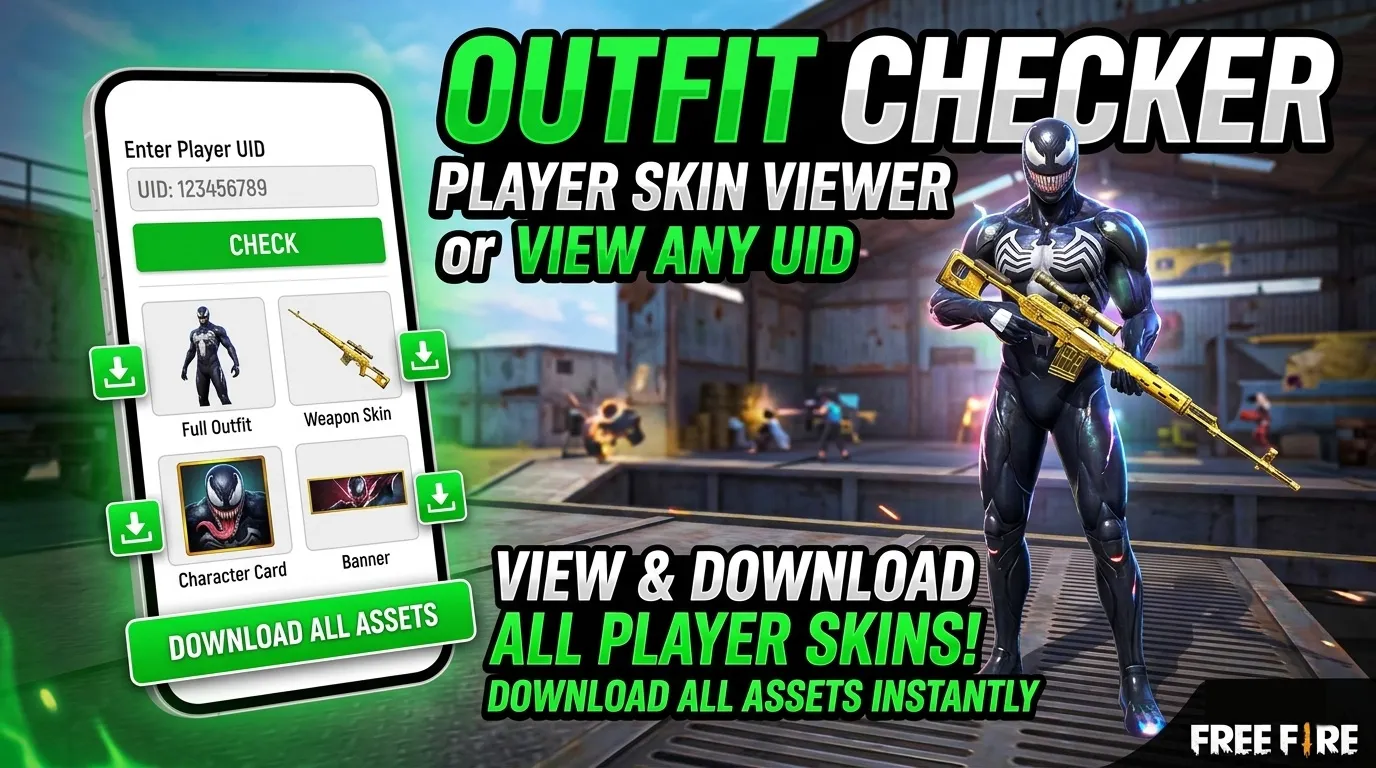

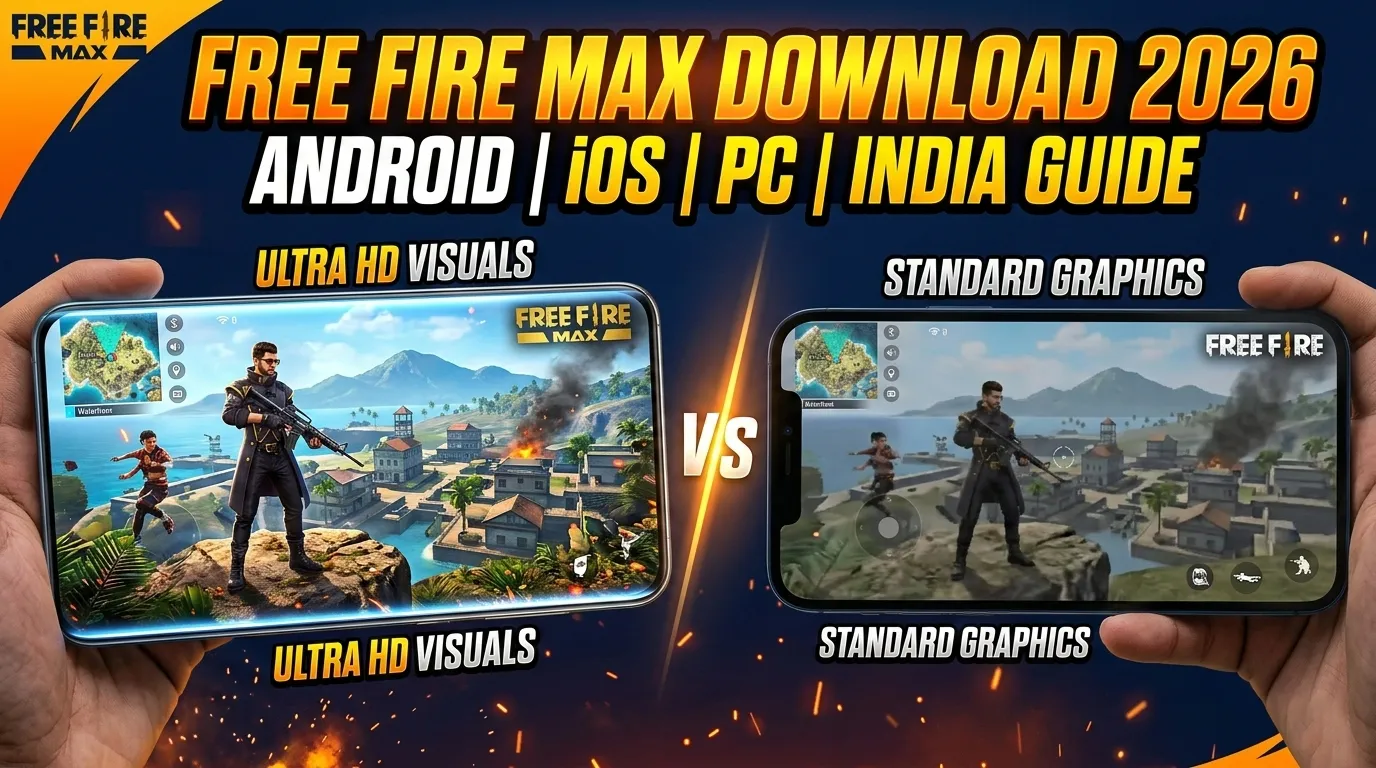

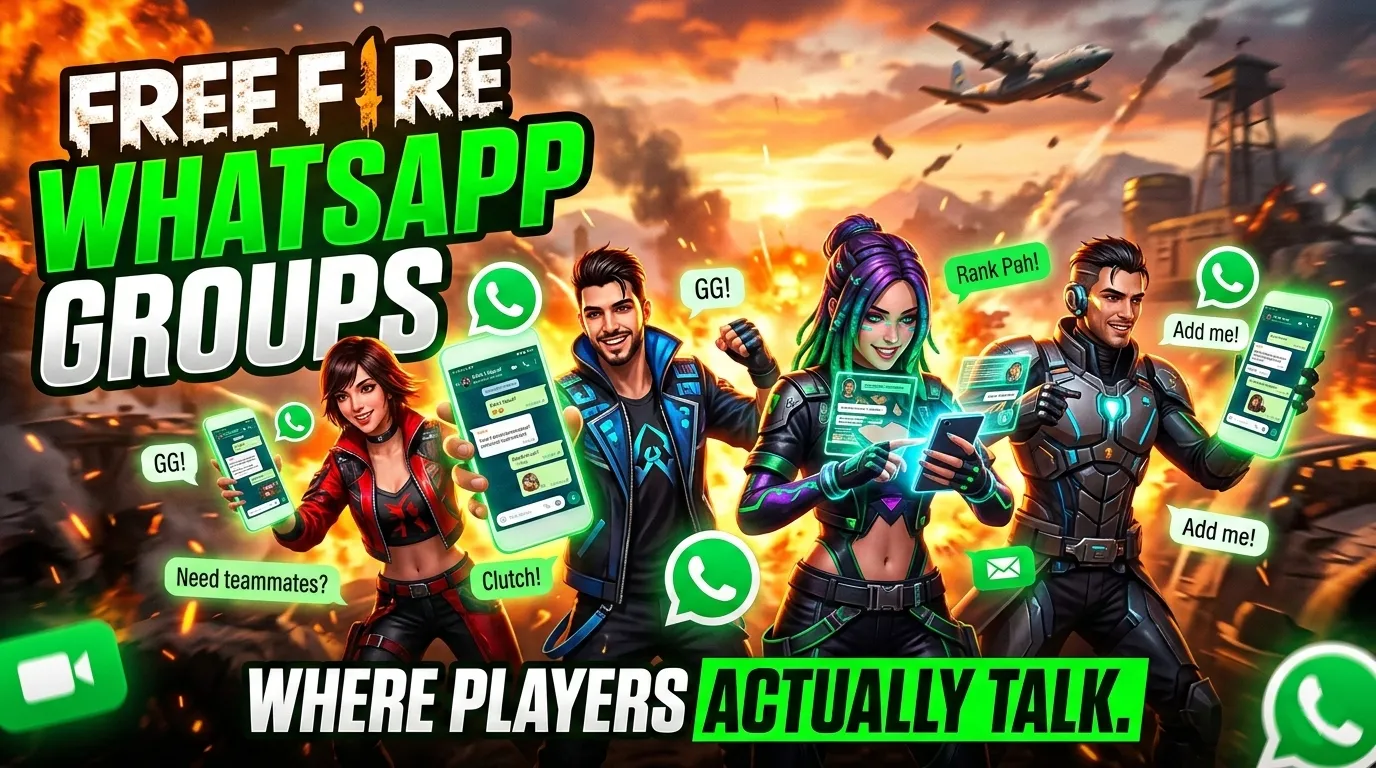
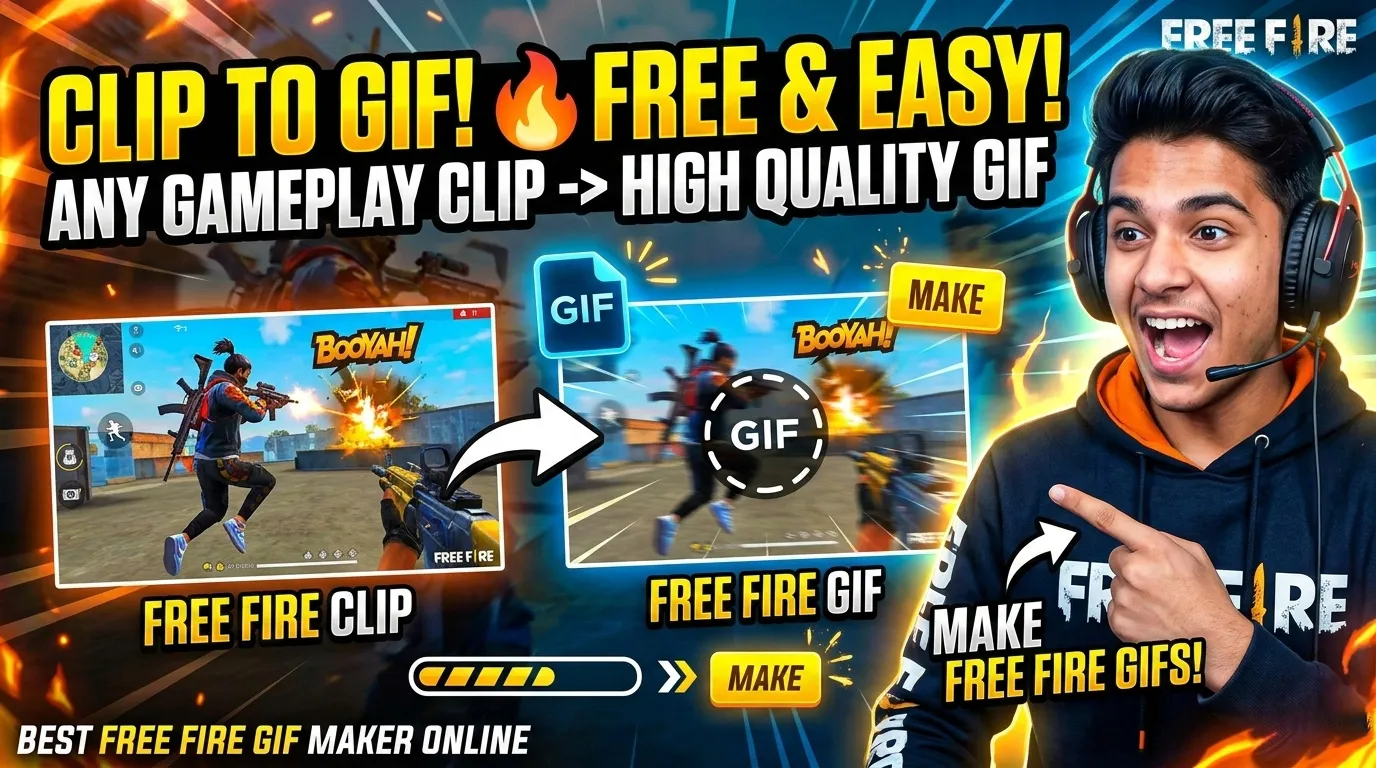


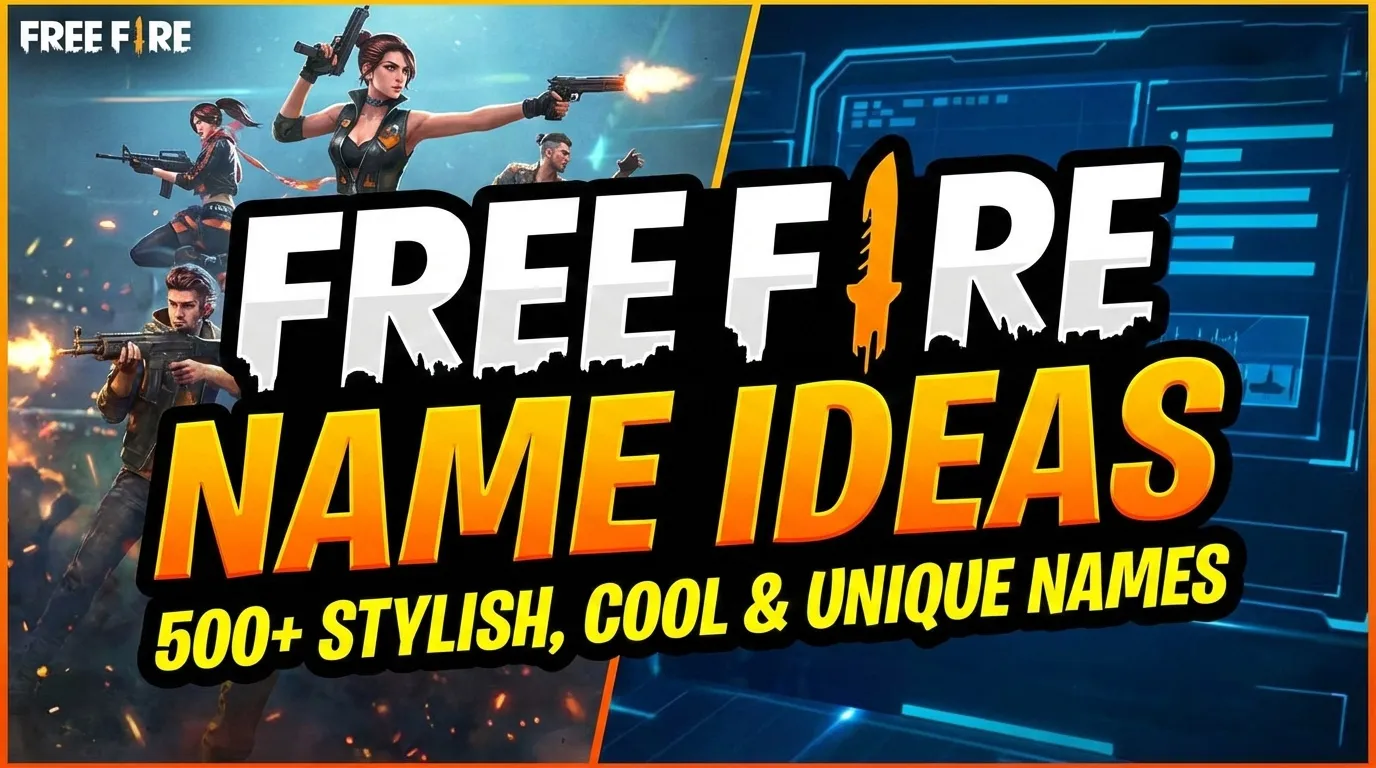
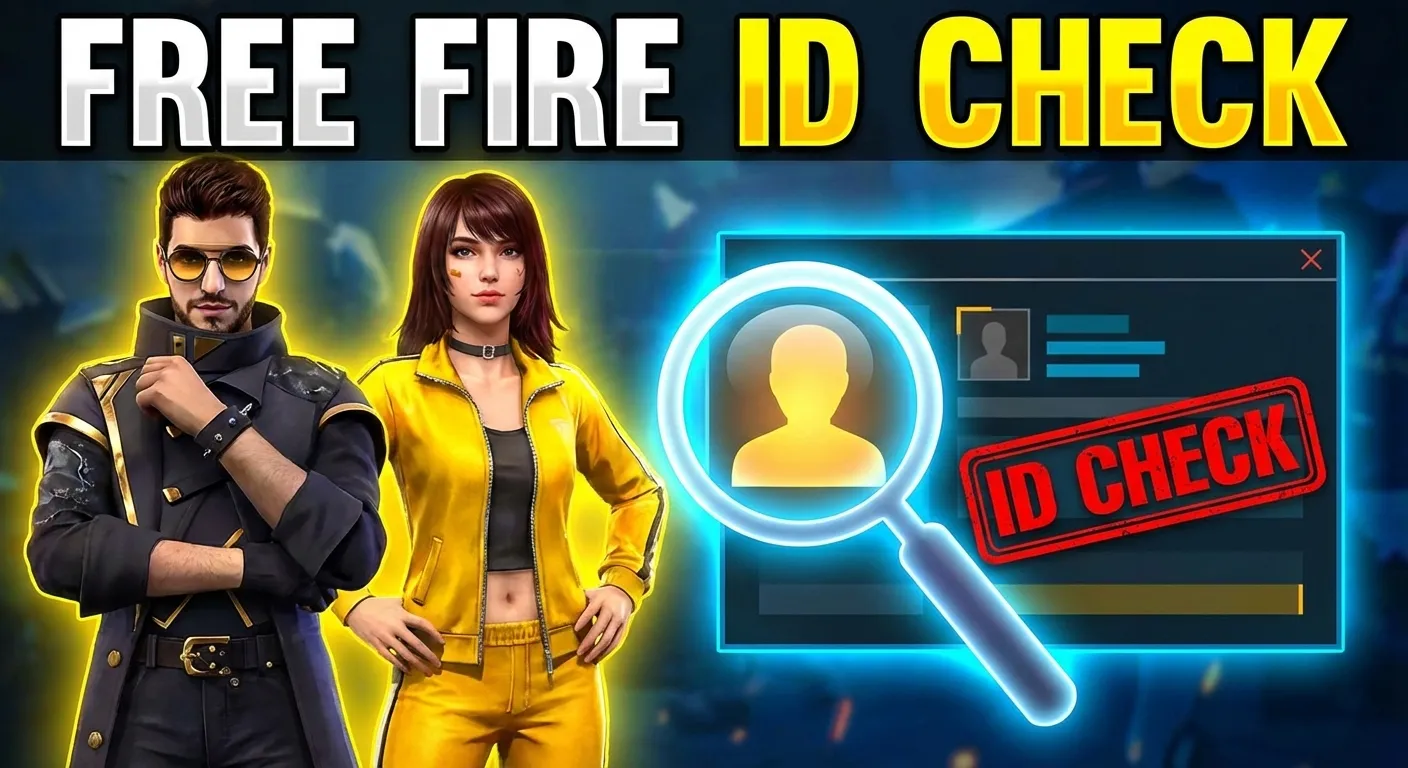


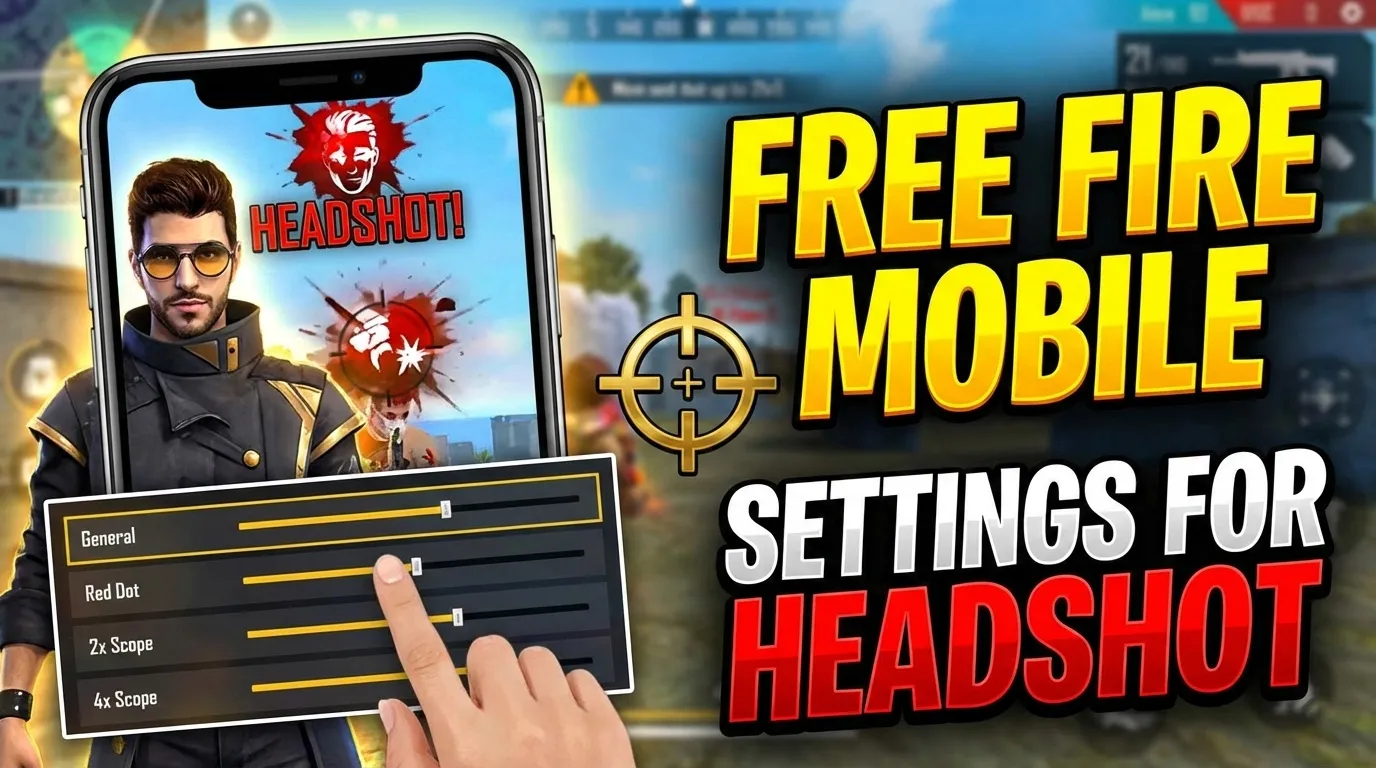
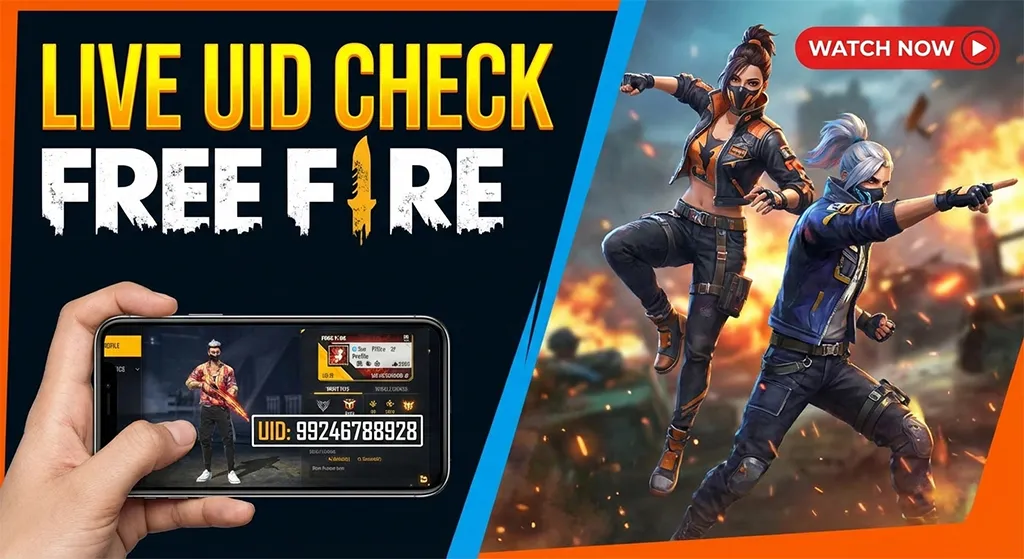
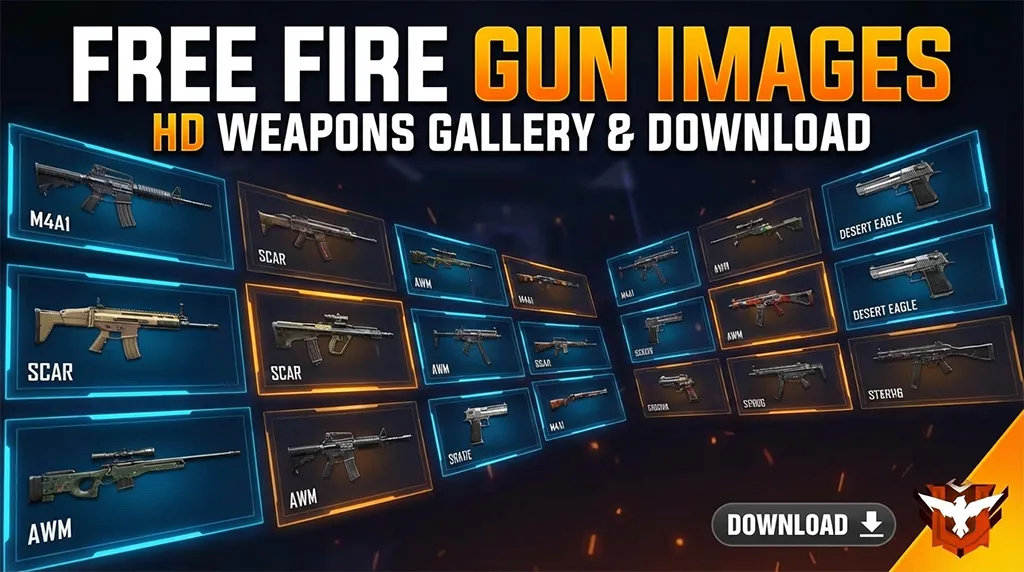
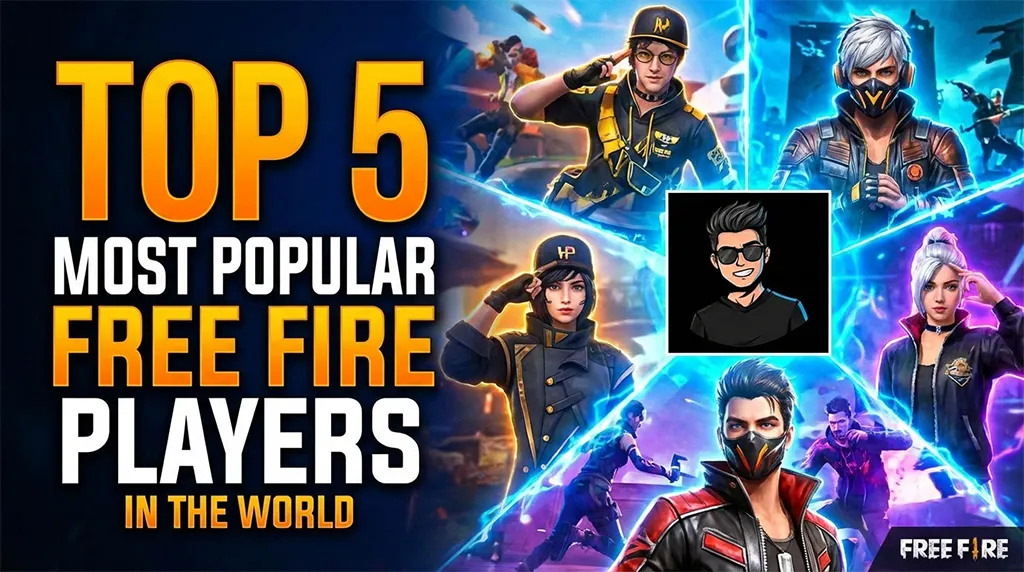
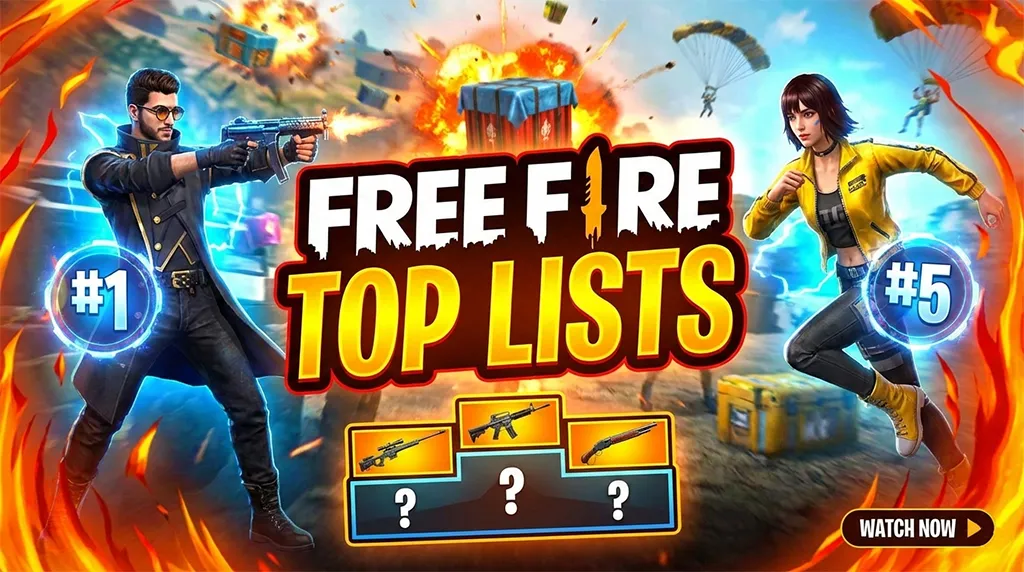
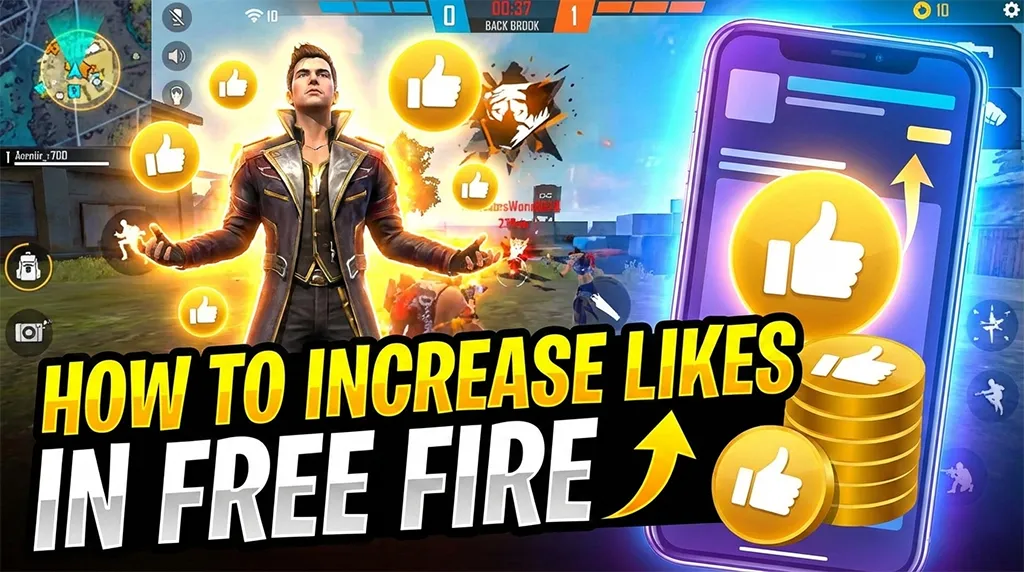
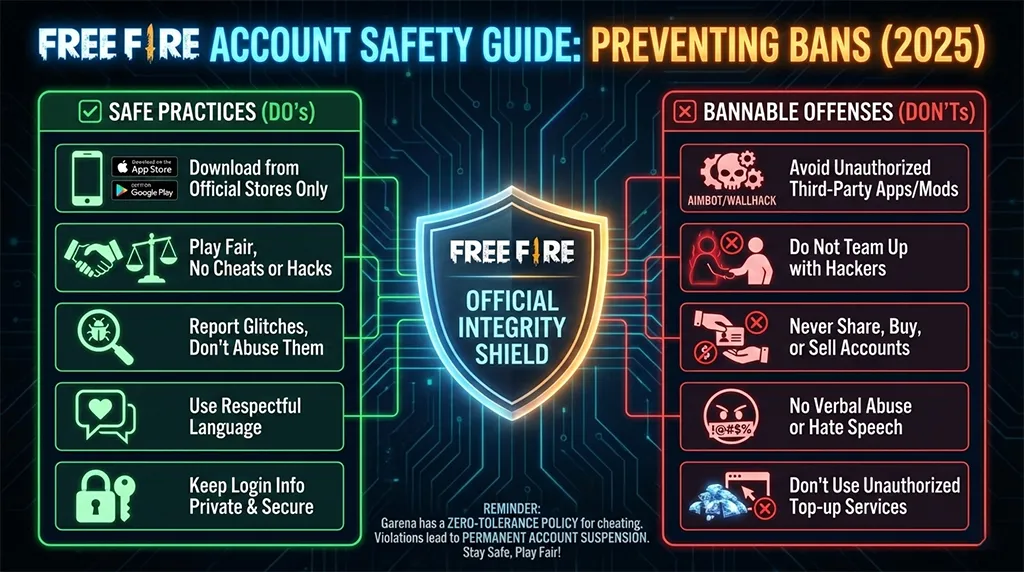

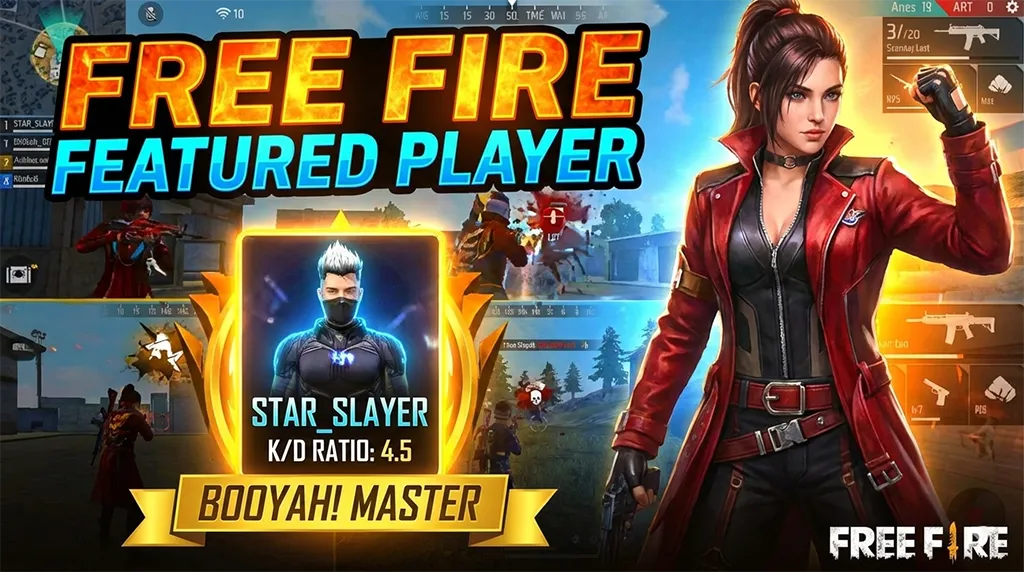
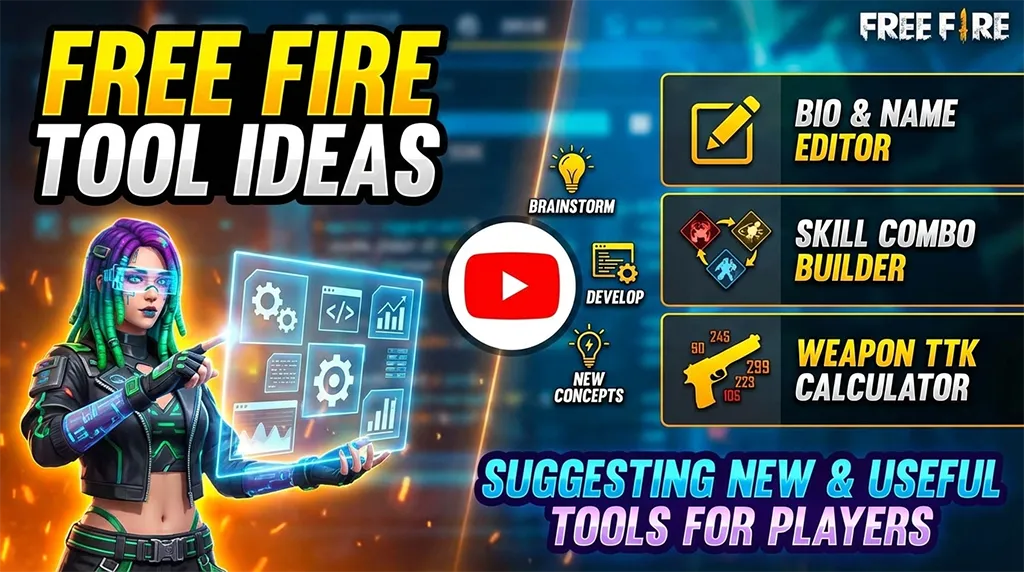
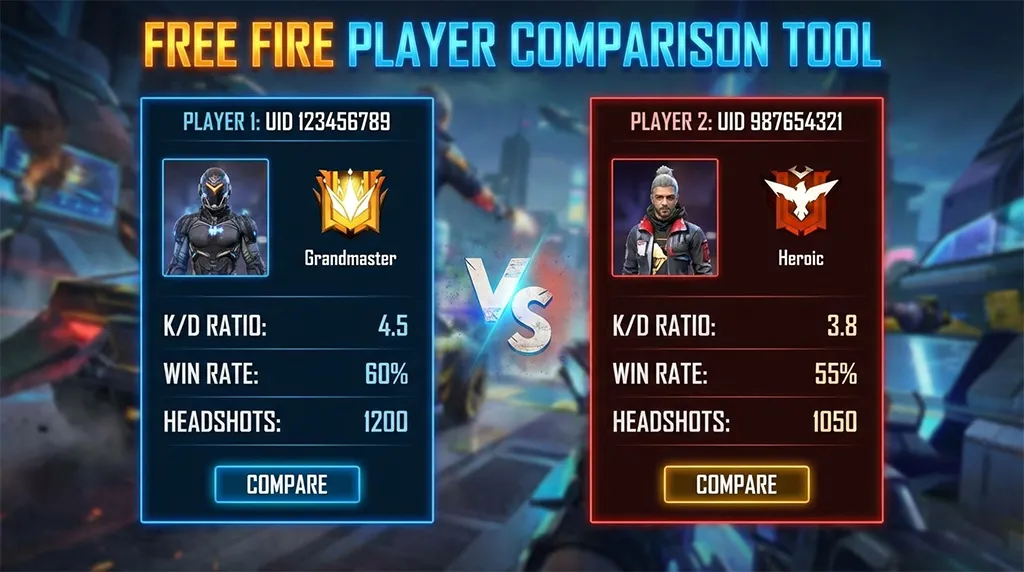
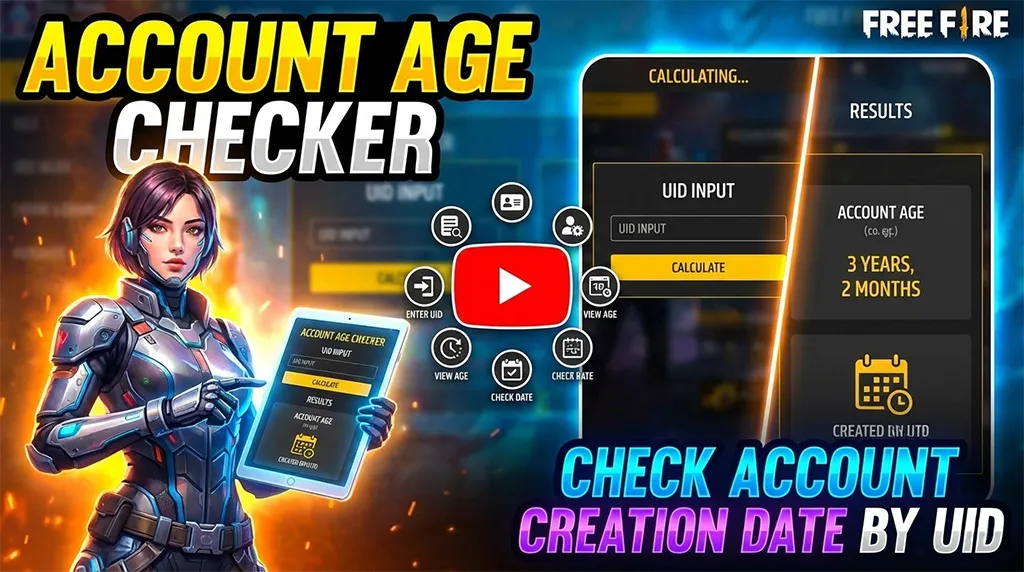

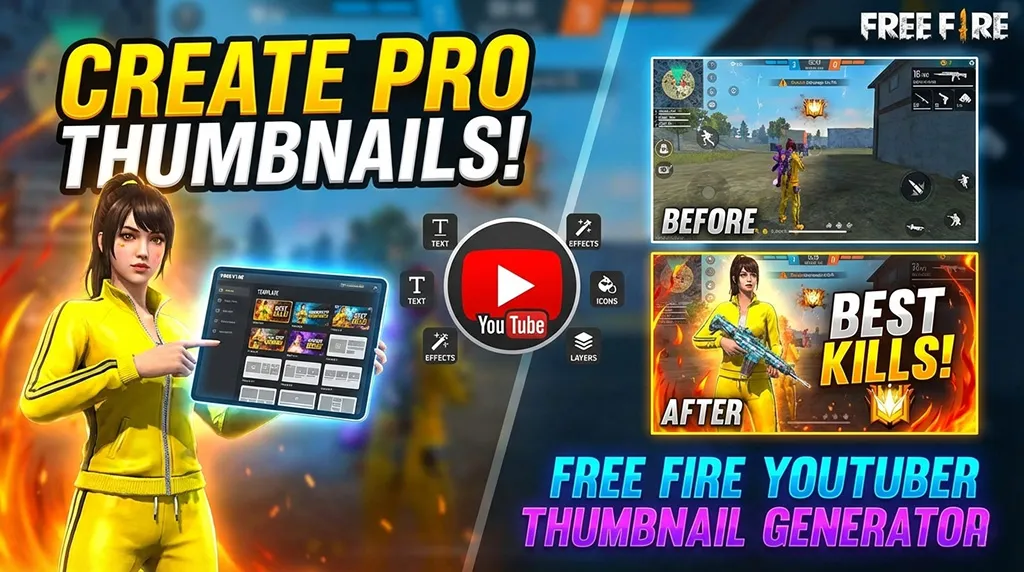
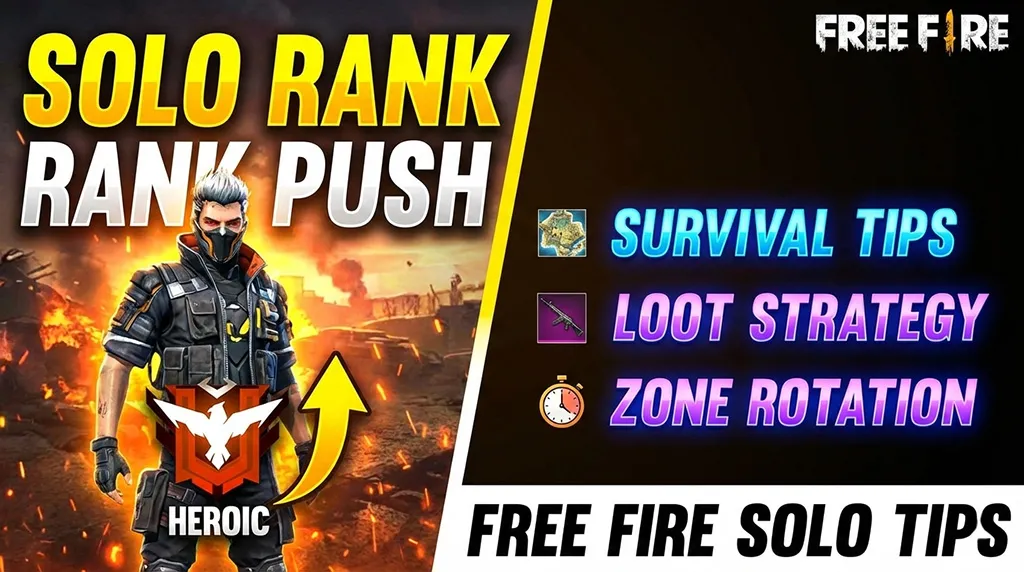
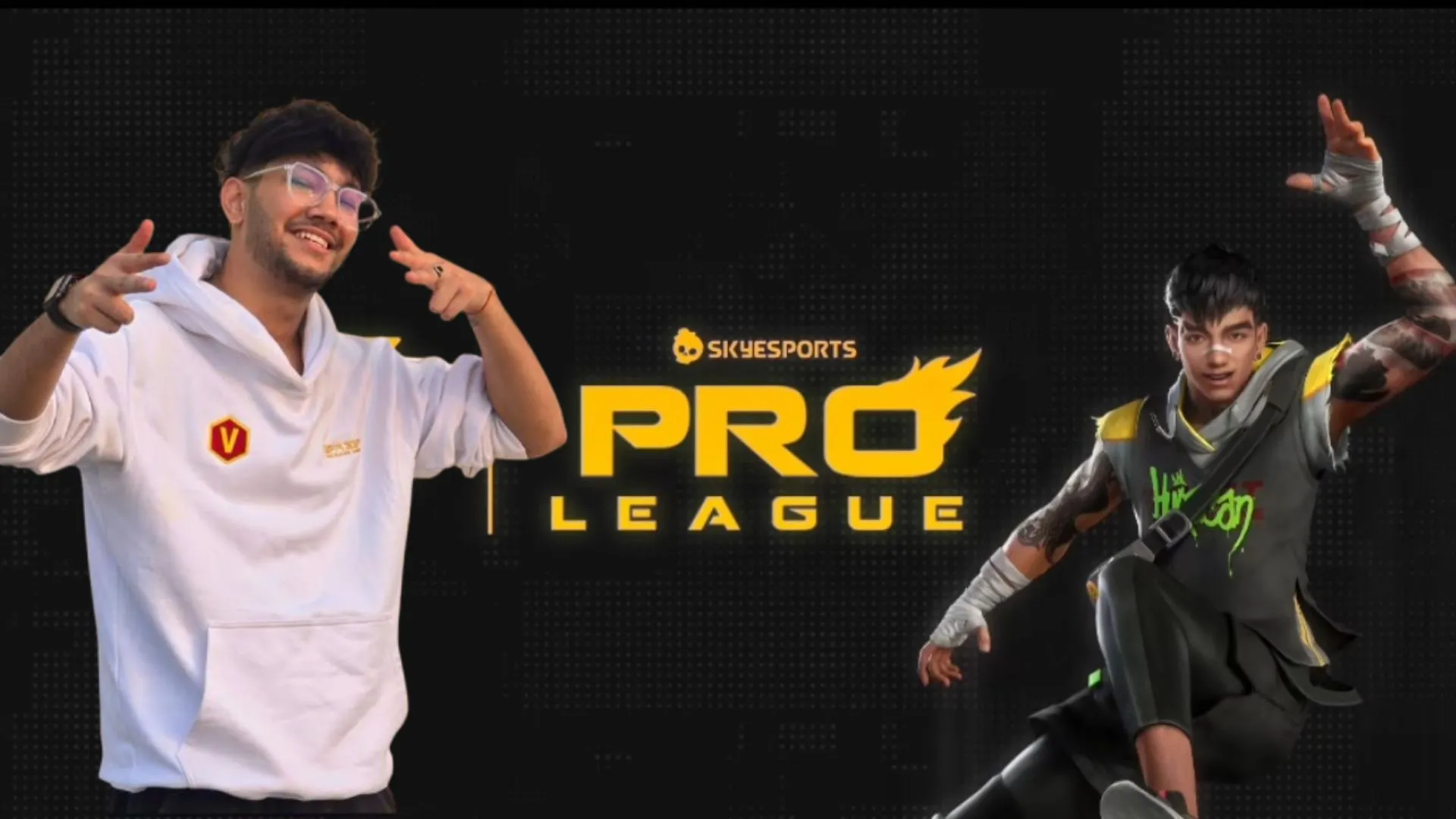
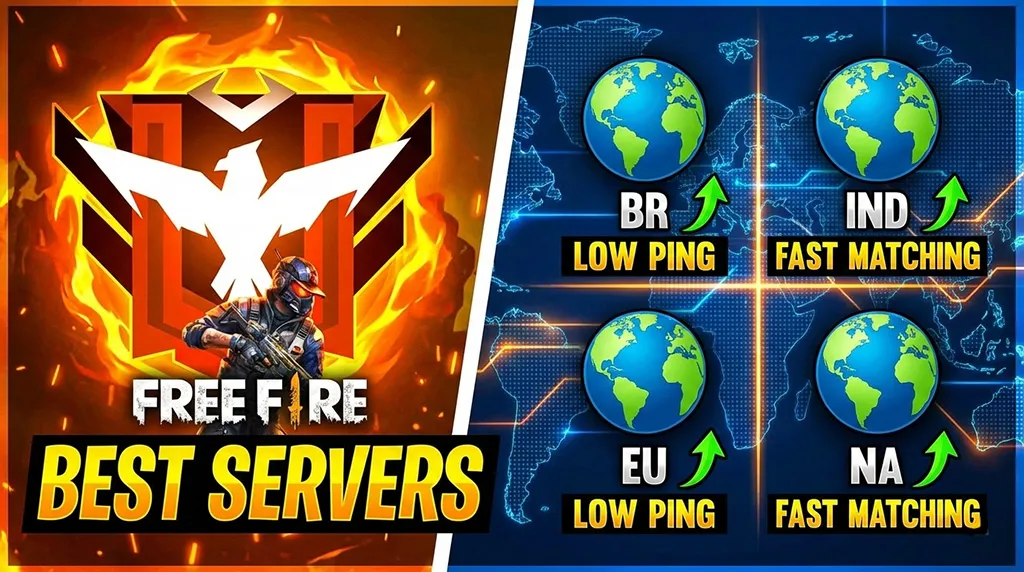

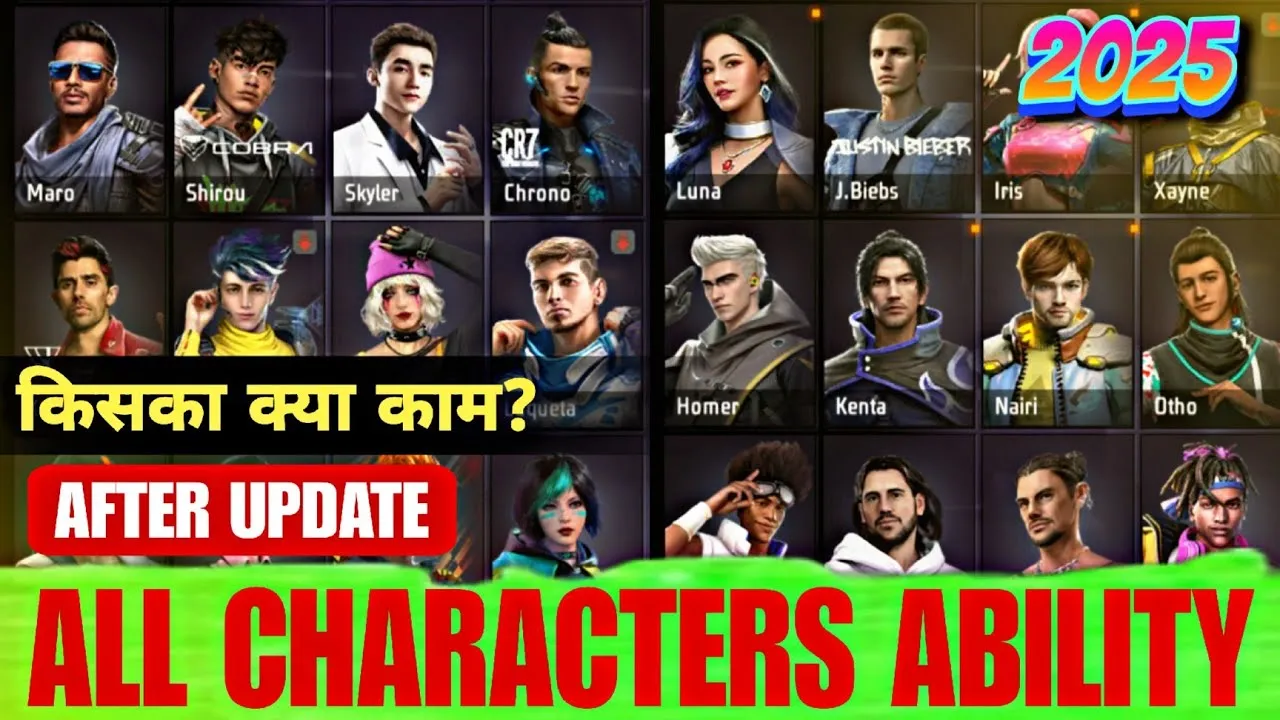
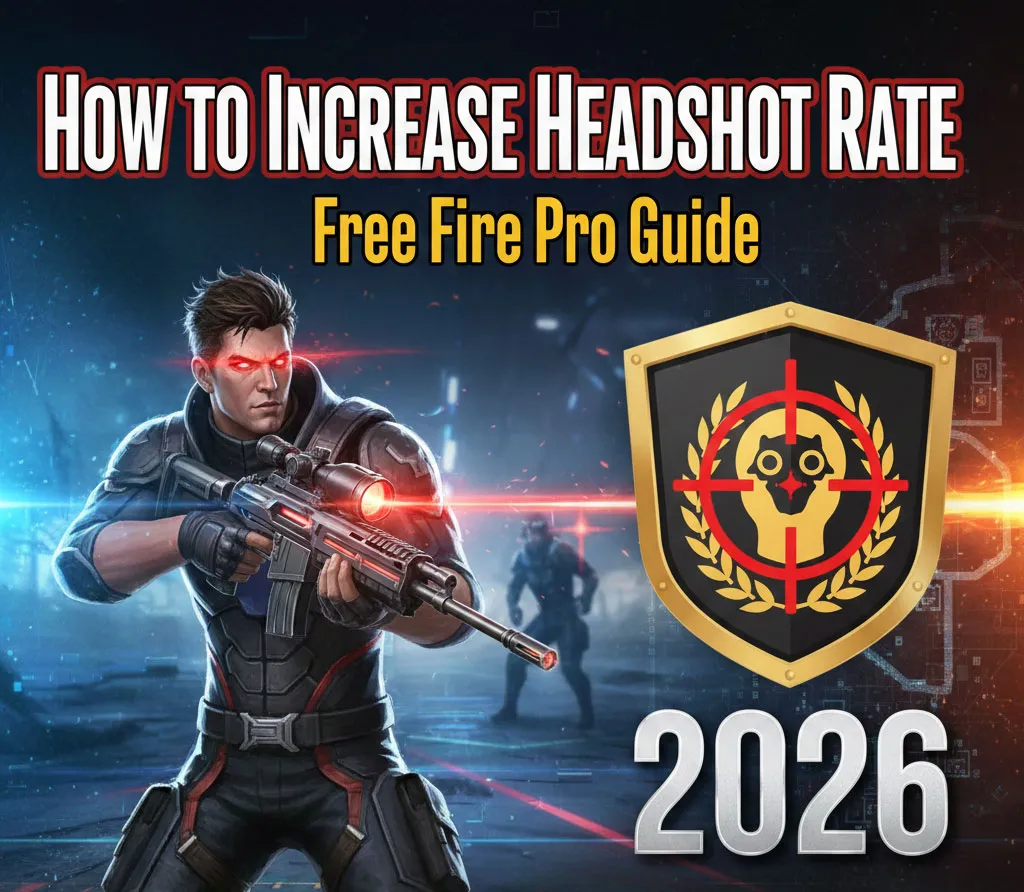
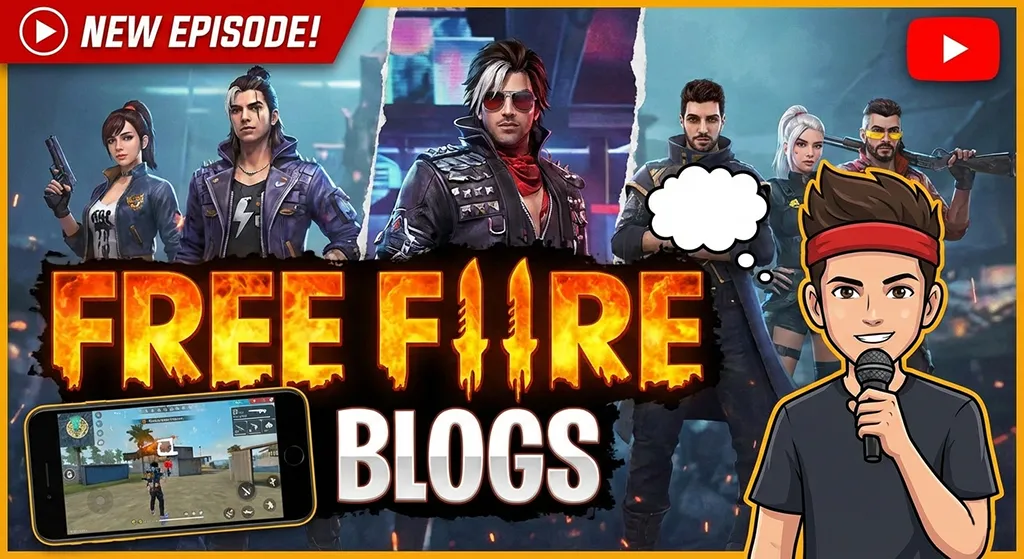
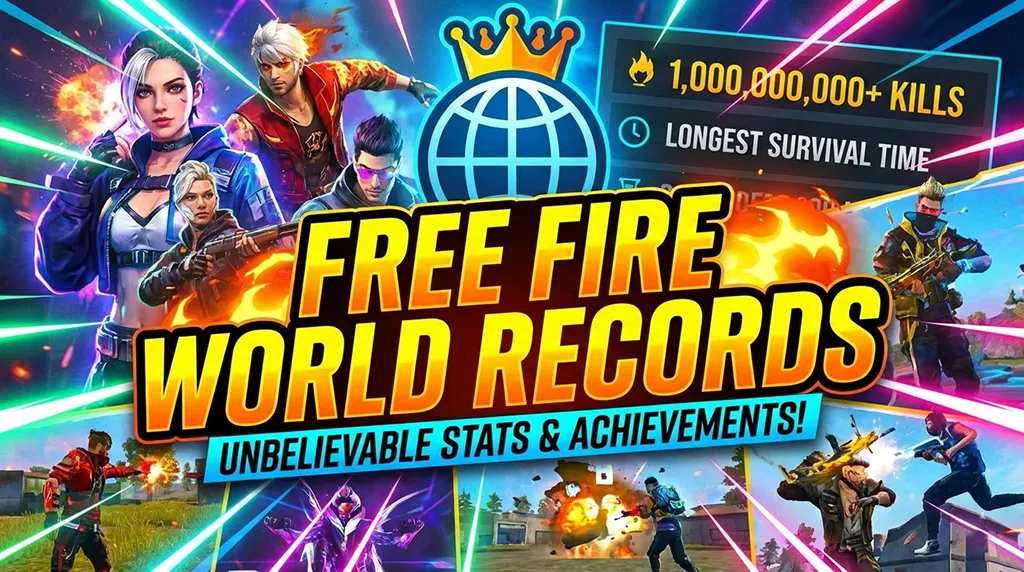

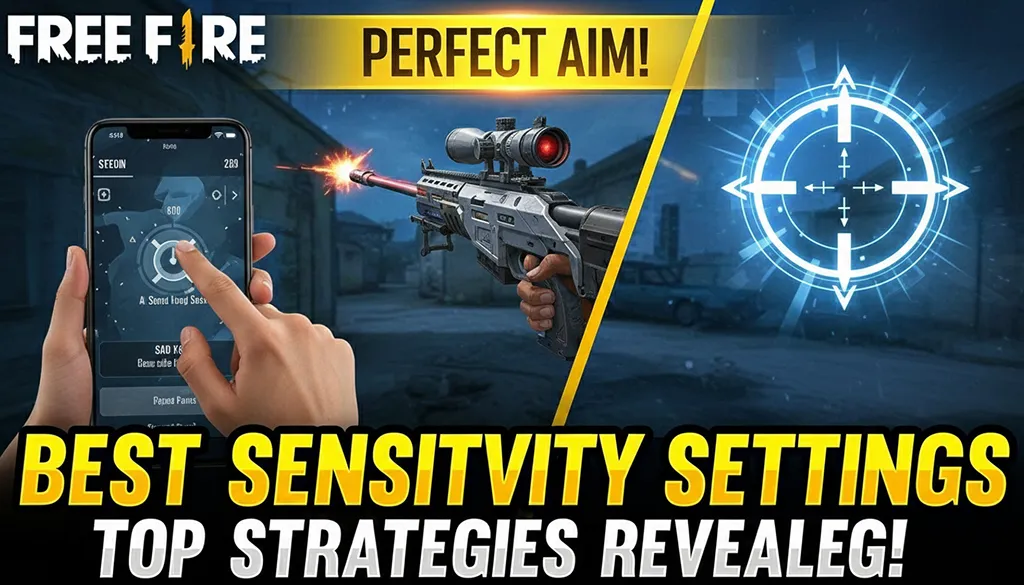
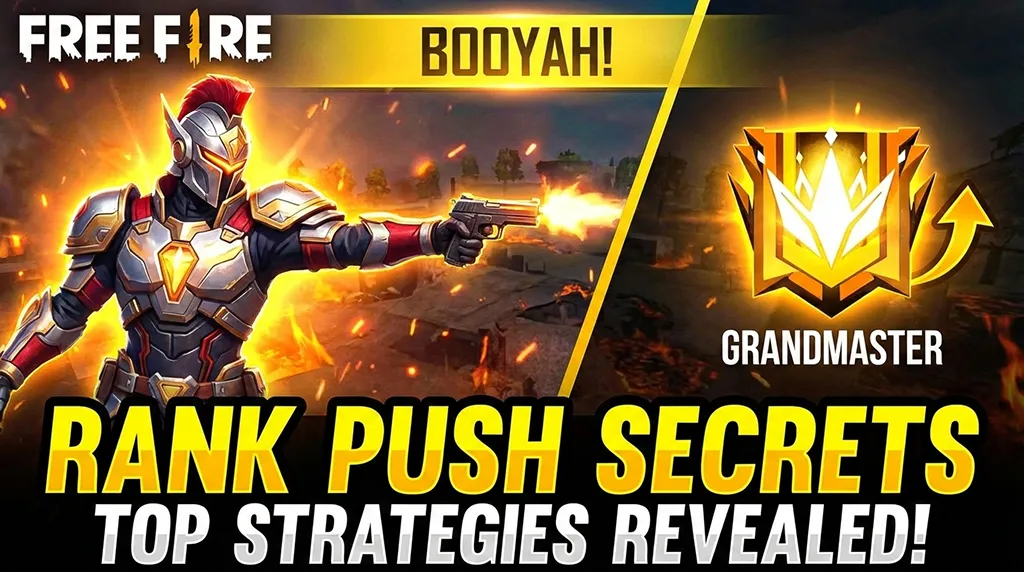
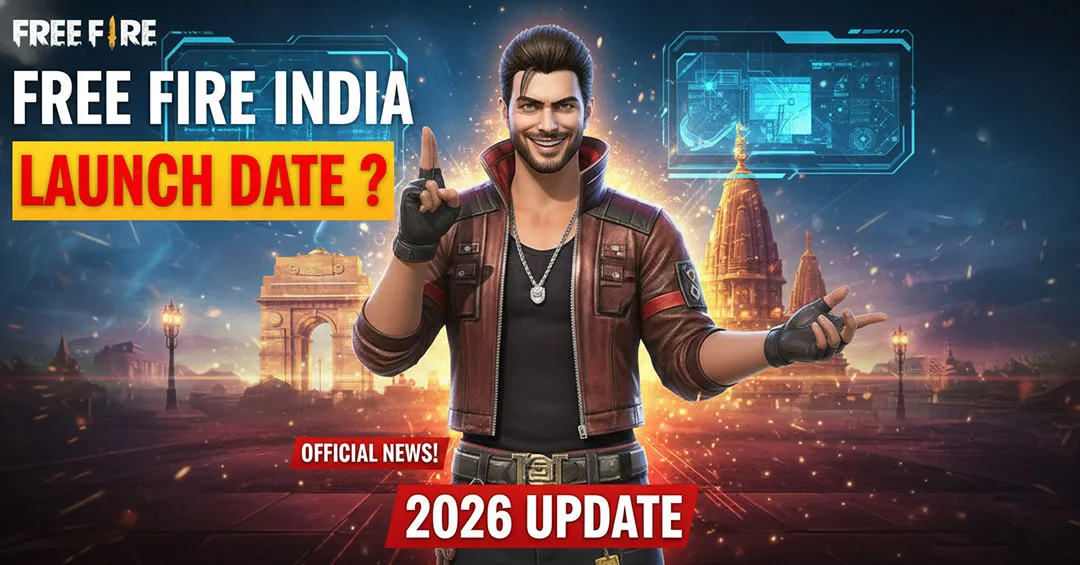
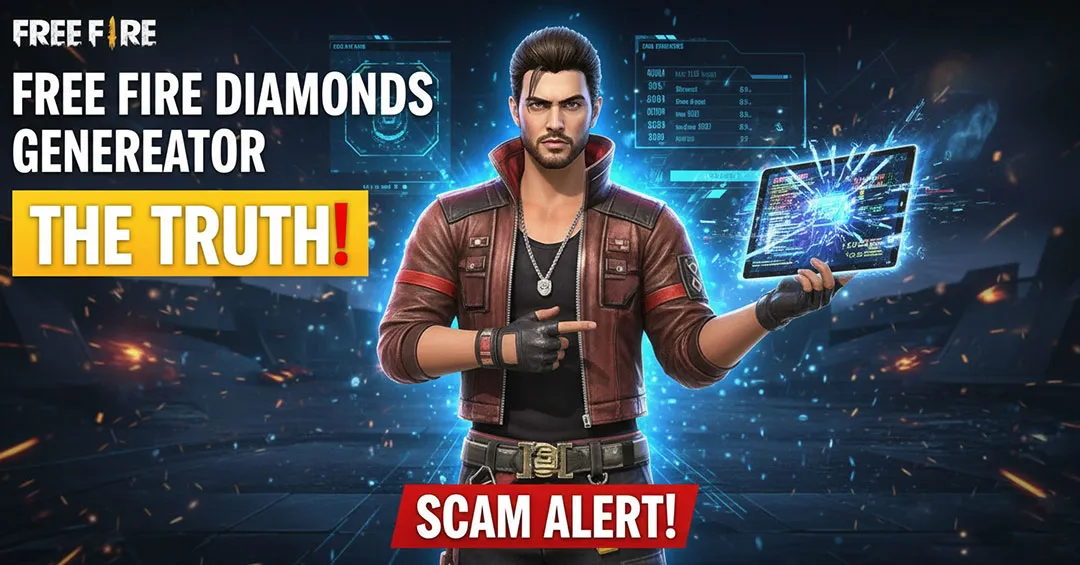
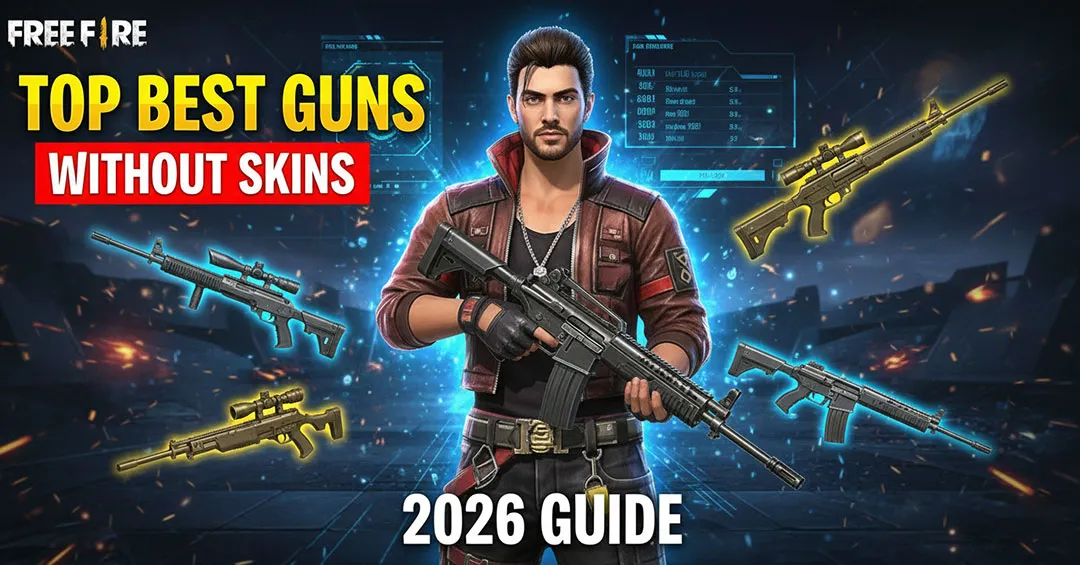
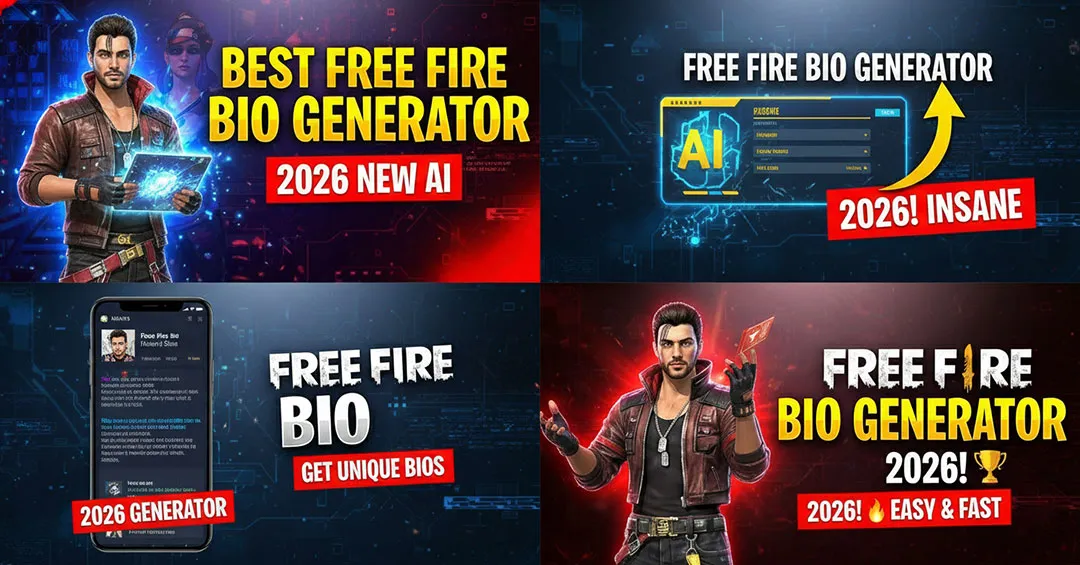
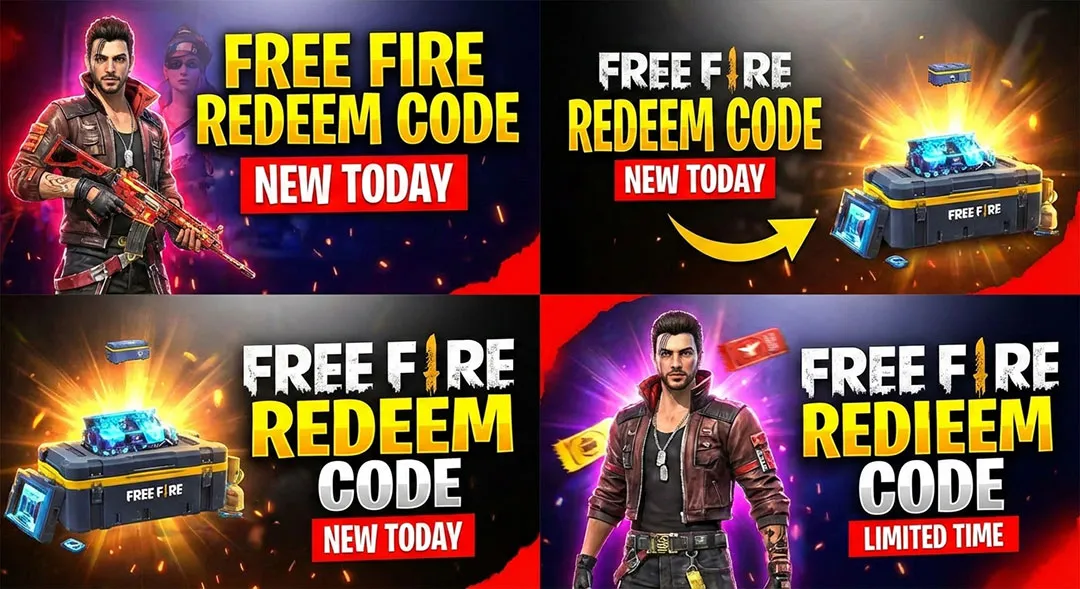
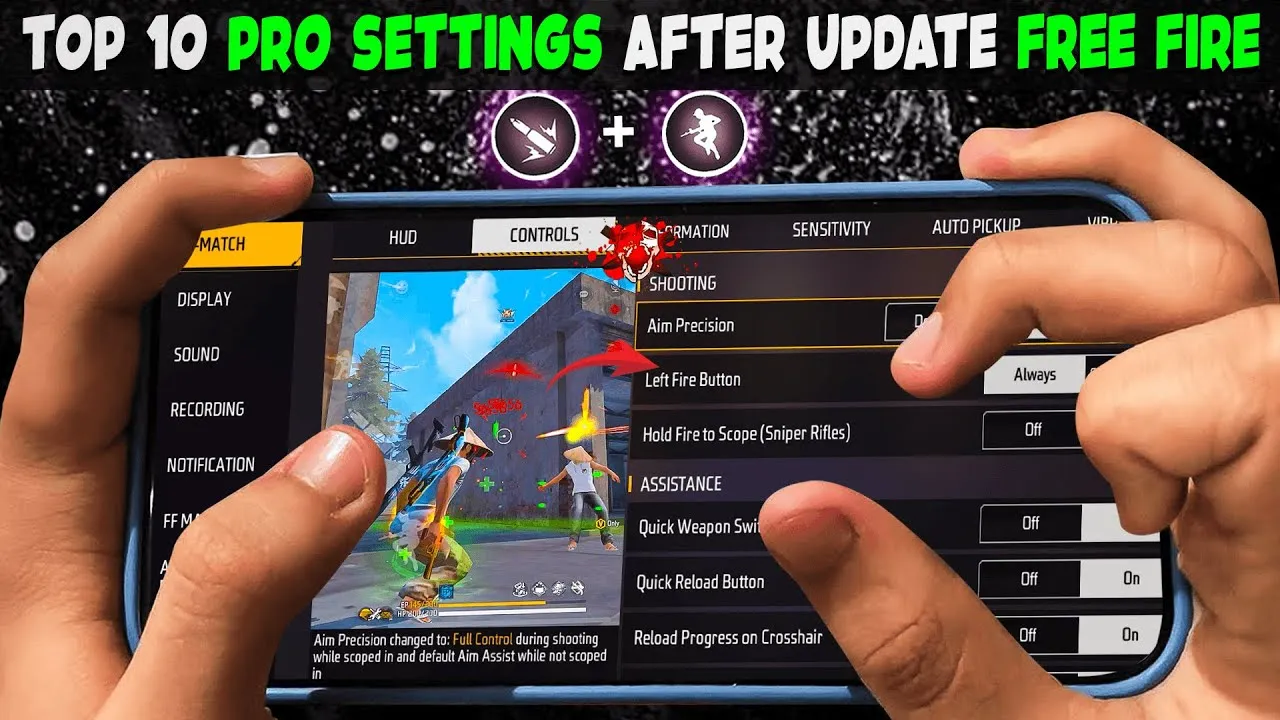

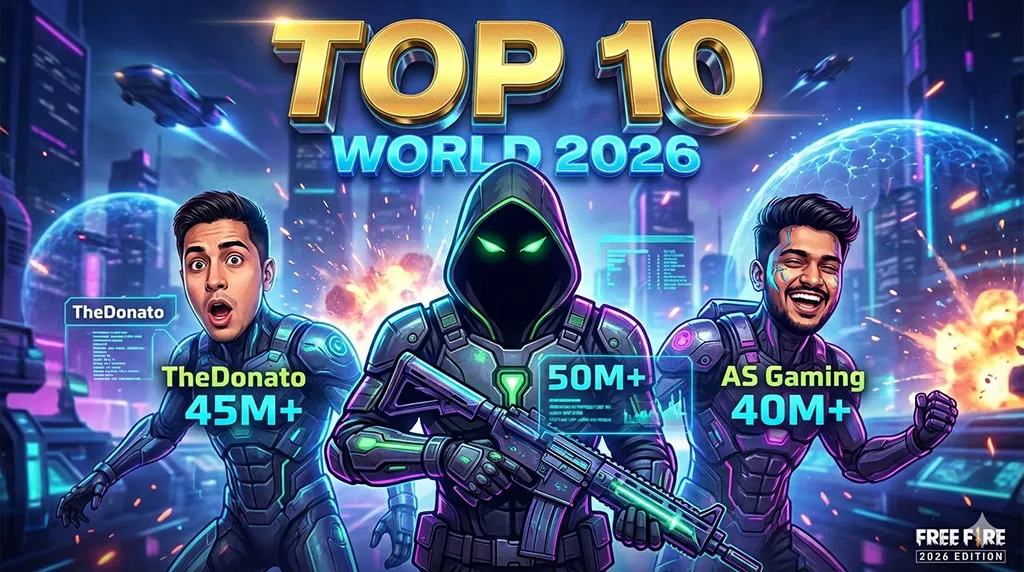
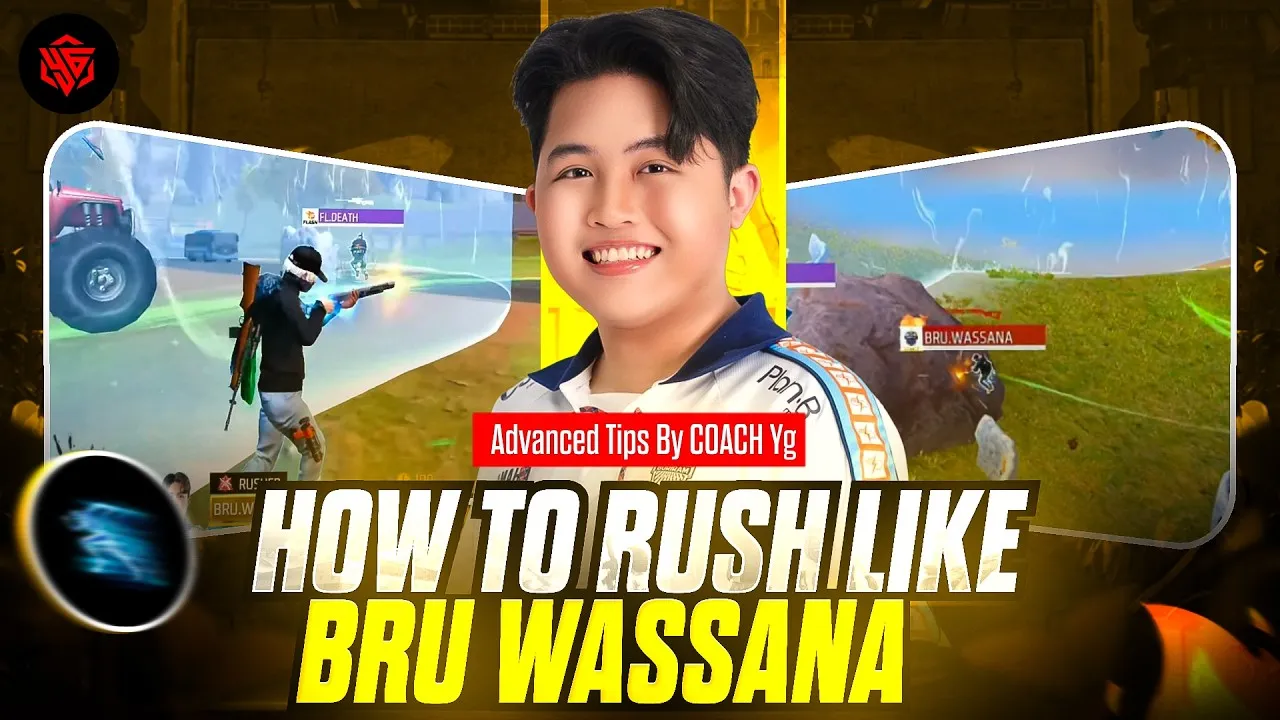
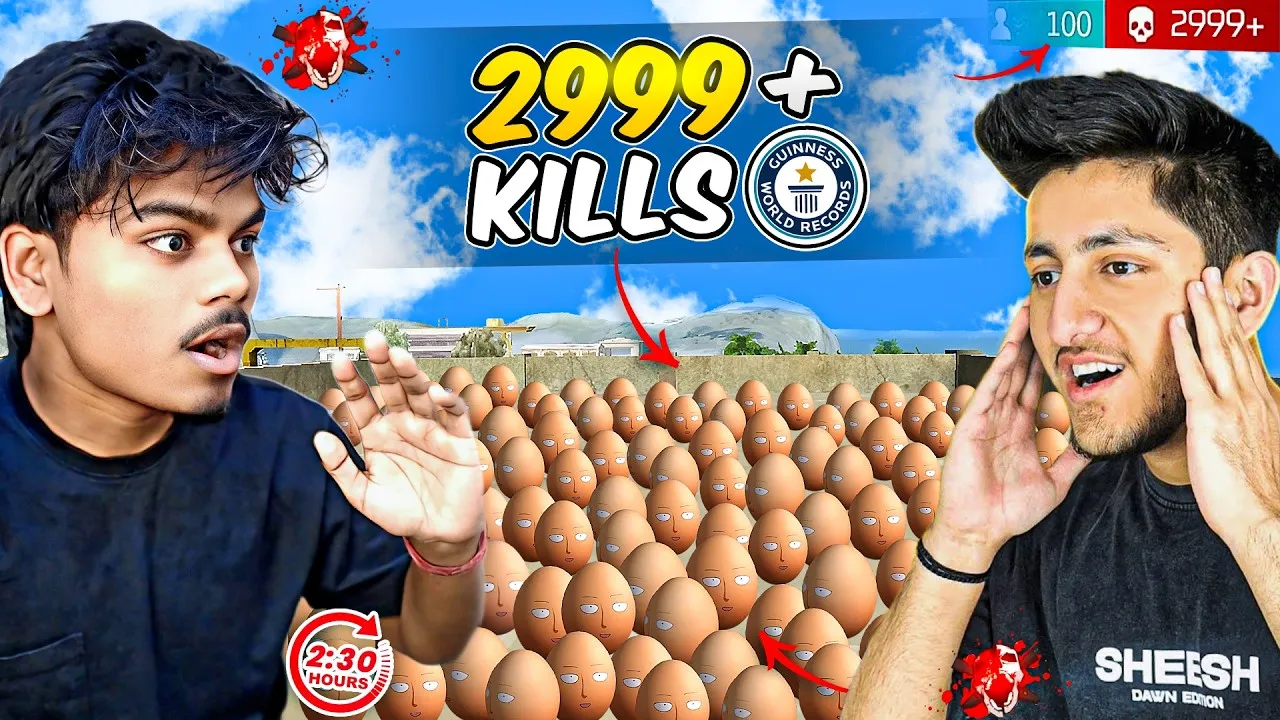
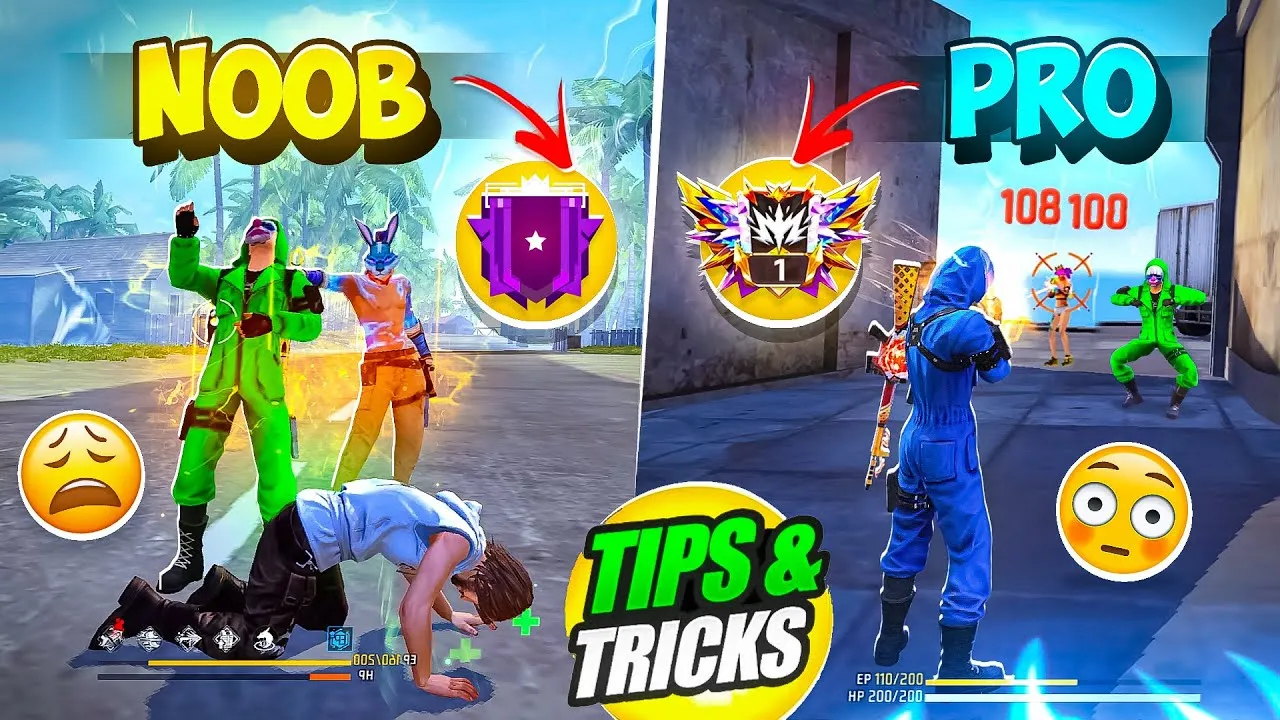
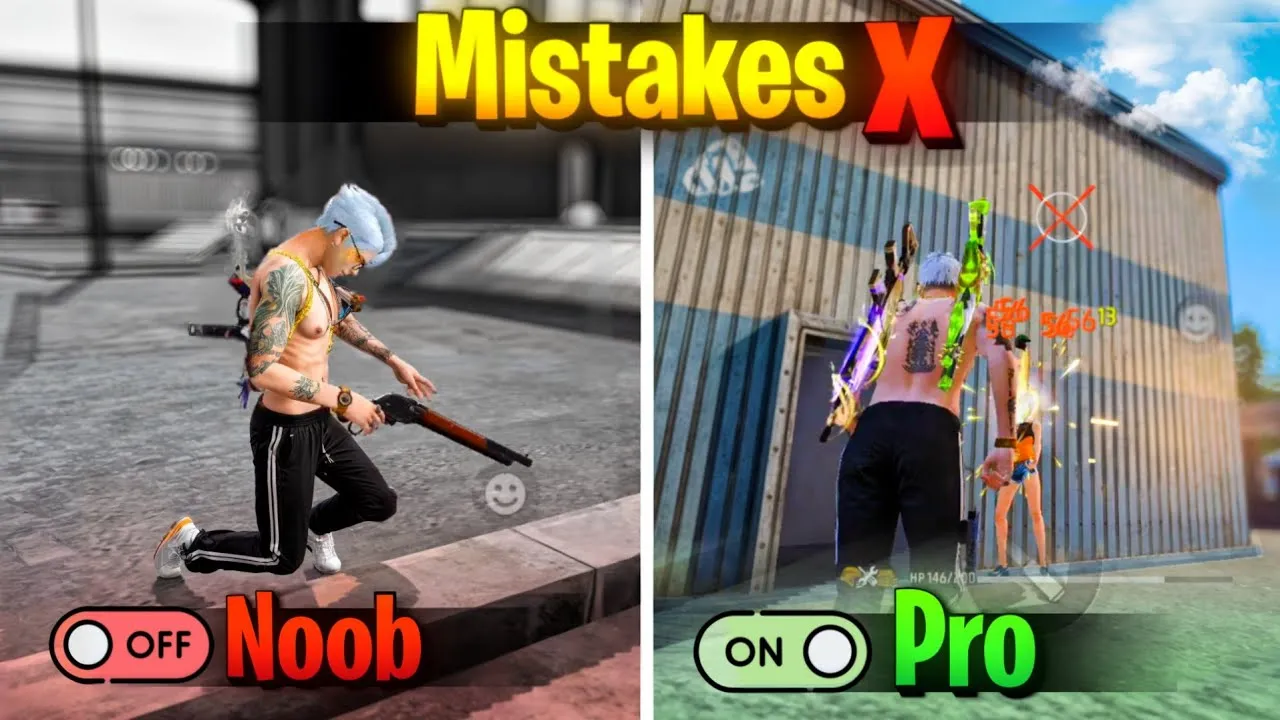
Free Fire Thumbnail Download — HD FF Thumbnails for YouTube, Reels & More
If you’ve ever uploaded a Free Fire YouTube video and barely got any views, your thumbnail was probably the problem. Not your gameplay. Not your editing. The thumbnail.
Creators who use high-quality Free Fire thumbnails get up to 3× more clicks than those who use blurry screenshots. That one image is the difference between someone clicking your video or scrolling right past it. And the good news? You don’t need Photoshop skills or a paid subscription to get stunning FF thumbnails. You just need the right place to find them.
This guide covers everything you need to know about Free Fire thumbnails — what they are, why they matter, how to use them, and where to download the best HD ones completely free.
What Is a Free Fire Thumbnail?
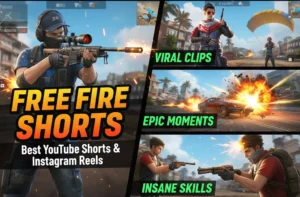
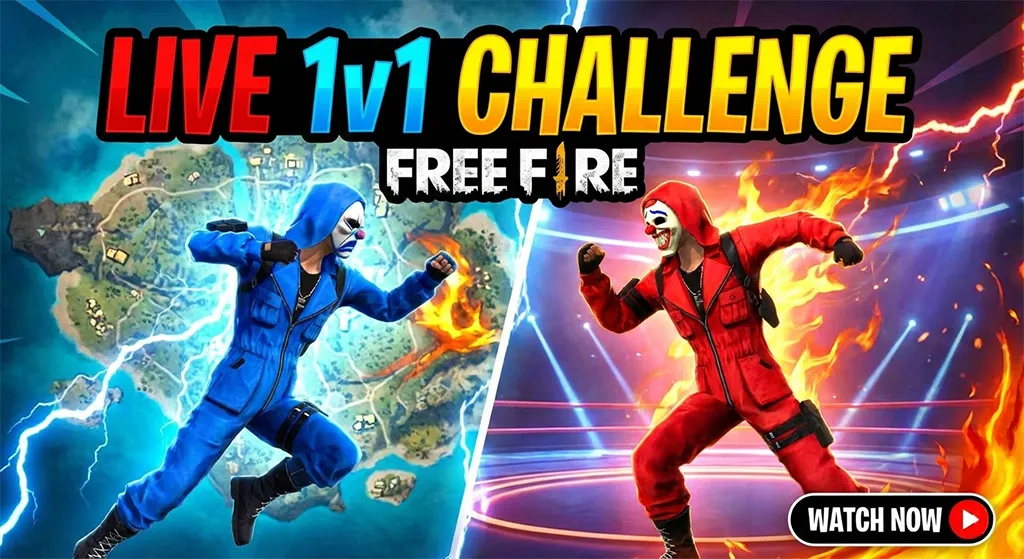
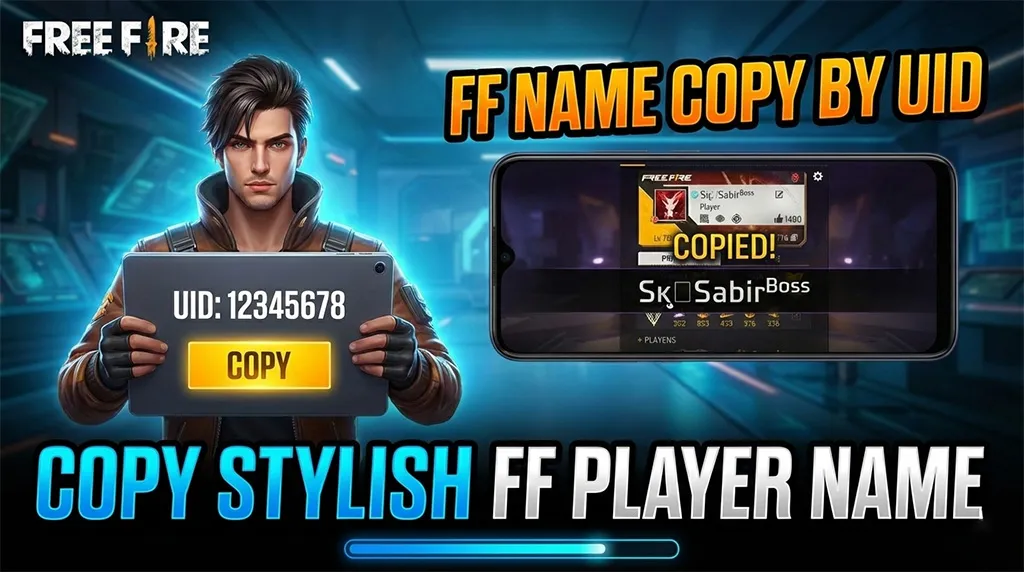
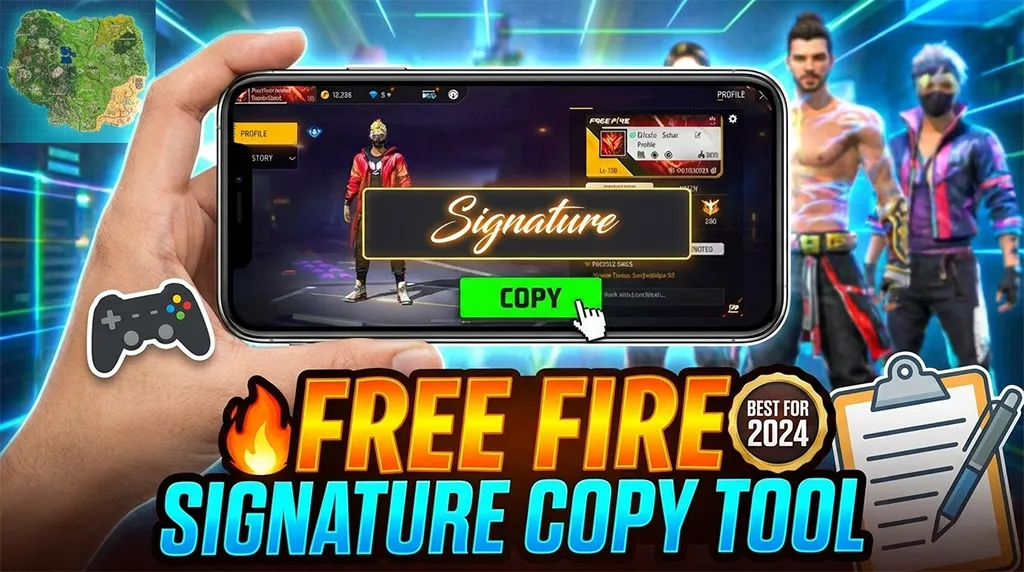
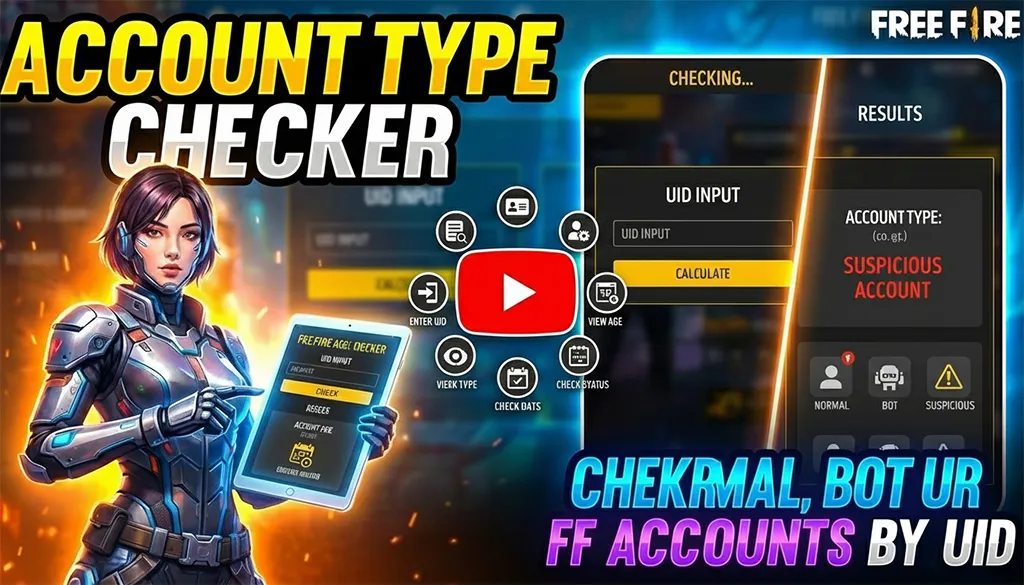
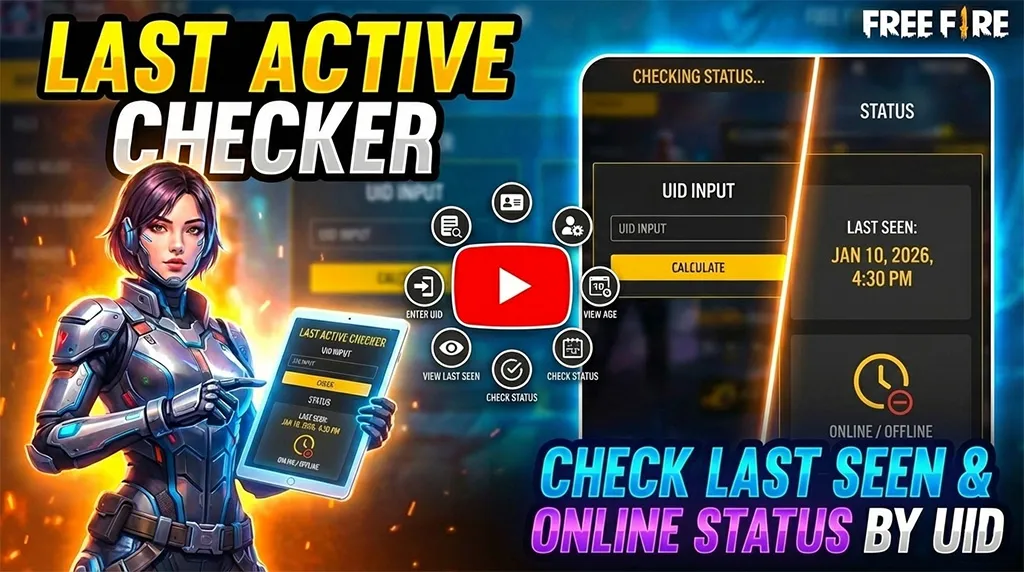
A Free Fire thumbnail is a preview image used to represent Free Fire content — whether that’s a YouTube video, a Facebook post, a Reels cover, or even a gaming profile banner.
Think of it like the cover of a book. The book might be amazing, but if the cover looks dull, most people won’t even pick it up. The same logic applies to your FF content.
A great Free Fire thumbnail typically features:
- A bold, high-resolution Free Fire character (Chrono, Alok, Kelly, DJ Alok, etc.)
- A dramatic or action-packed background — battlefields, fire effects, neon highlights
- Clean composition that looks sharp even at small sizes (like on a mobile screen)
Thumbnails come in different types depending on where you use them:
- YouTube thumbnails — 1280×720 px, the most common format
- Reels / Shorts covers — vertical format, 1080×1920 px
- Facebook / Instagram post thumbnails — square or landscape
- Profile backgrounds — wide banner images
Why Your Free Fire Thumbnail Matters More Than You Think
Here’s a fact that might surprise you: YouTube’s own Creator Academy states that 90% of the best-performing videos on YouTube use custom thumbnails. Default auto-generated screenshots almost never compete.
For Free Fire content specifically, the competition is fierce. Search “Free Fire gameplay” on YouTube and you’ll see hundreds of videos. The ones getting clicked consistently all share one thing — a high-quality, eye-catching Free Fire thumbnail.
The Psychology Behind a Good Thumbnail

Humans process images 60,000 times faster than text. When someone is scrolling through search results, they spend less than a second deciding whether to click or move on. Your thumbnail has that one second to do its job.
A strong Free Fire thumbnail communicates three things instantly:
- What the content is about — characters, booyah moments, tips, rank push
- The energy level — exciting, professional, worth watching
- Trust — it looks like a real creator made this, not a random screenshot
This is why investing even 5 minutes into picking the right thumbnail pays off every single time.
Types of Free Fire Thumbnails You Can Download Here
On Free Fire Nation, every Free Fire thumbnail in our gallery is categorised so you can find exactly what you need fast.
1. Free Fire Character Thumbnails
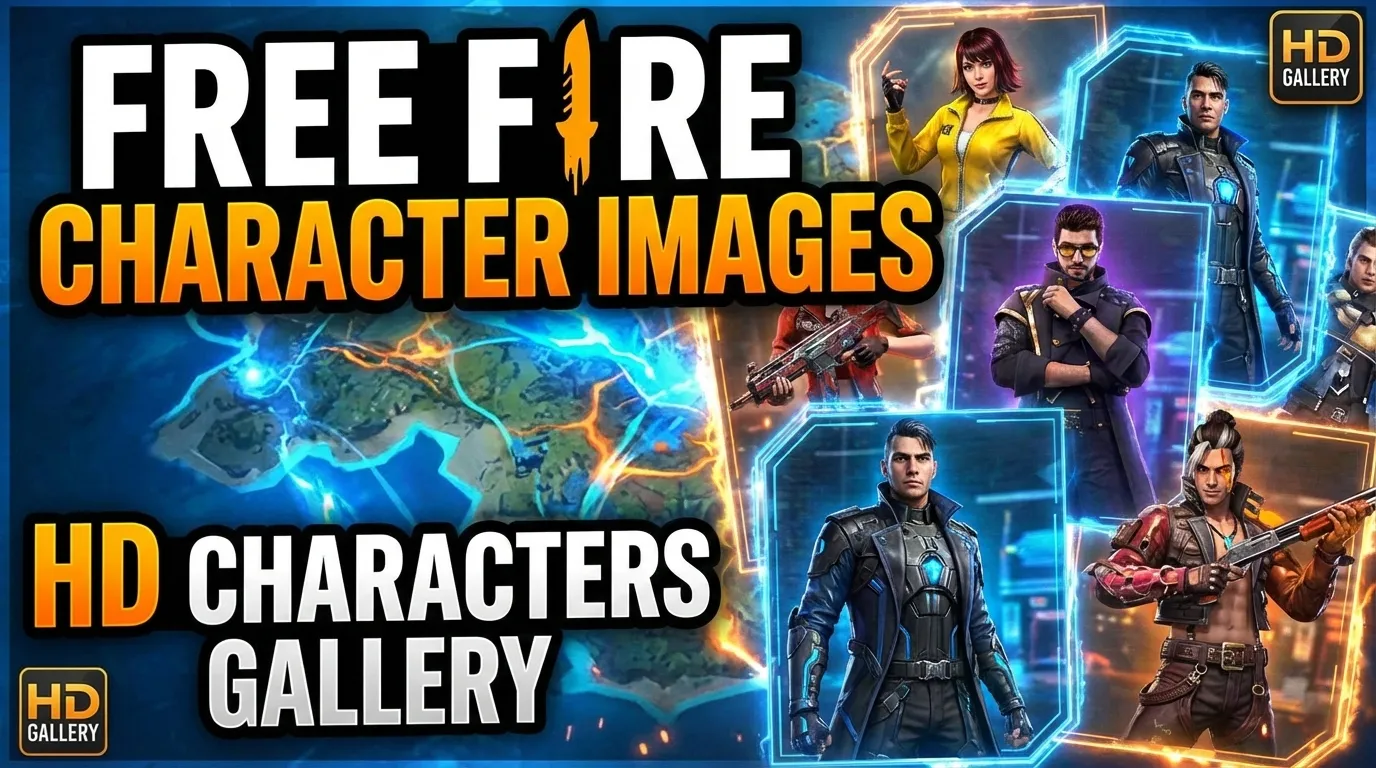
These feature individual FF characters in high-definition renders — perfect if your video is about a specific character’s ability, backstory, or best loadout.
Popular character thumbnails include:
- Chrono — shields, futuristic energy vibes
- Alok — musical, vibrant colour palette
- Kelly — clean, sprinter energy
- Moco — hacker aesthetic, electric blue tones
- Wolfrahh — aggressive, high-damage vibes
Each thumbnail captures the character’s personality, which helps your content feel intentional and themed.
2. Free Fire YouTube Thumbnails
These are pre-sized at 1280×720 px — the exact dimension YouTube recommends for the best display quality across all devices. They’re designed with bold compositions and enough negative space for you to add your video title text on top using CapCut, Canva, or PicsArt.
3. Free Fire Battlegrounds Thumbnails
These show the Bermuda, Kalahari, Purgatory, or Alpine maps in dramatic aerial or ground-level perspectives. Great for videos about map strategies, drop locations, or rotation tips.
4. FF Thumbnail Backgrounds
Sometimes you don’t want a character — you just want a clean, dark, or fiery background to build your own thumbnail from scratch. We’ve got solid abstract backgrounds, fire effects, and bokeh-style dark backdrops that work perfectly with any FF character cut-out.
How to Download Free Fire Thumbnails From This Page
Downloading is as simple as it gets — no account, no payment, no watermark.
Here’s the process:
- Browse the gallery above — use the Newest or Oldest filter to sort the collection
- Click any image to open the full HD version in the lightbox
- Click the Download button below the thumbnail — your browser saves the full-resolution file directly
- Open in your editor — drop it into CapCut, PicsArt, Photoshop, or Canva and customise as needed
The downloaded file is always the original full-resolution version — nothing compressed, nothing watermarked.
How to Use a Free Fire Thumbnail for YouTube (Step by Step)
If you’re new to creating content, here’s exactly how you go from downloading a thumbnail to getting it live on YouTube.
Step 1 — Download the thumbnail
Pick the Free Fire thumbnail that best matches your video’s topic. A rank push video? Go for a dramatic Chrono or Hayato thumbnail. A tips video? A clean character render with space for text works perfectly.
Step 2 — Add your text in CapCut or Canva
Open the thumbnail in CapCut (free, available on Android and iOS). Tap the text tool and add your video title in bold, high-contrast font. White or yellow text with a dark outline reads best on almost any background.
Keep it short — 4 to 6 words maximum. Something like “PRO TIPS to WIN every BOOYAH” is far more clickable than a full sentence.
Step 3 — Export at the right size
In Canva, set your document to 1280×720 px before you start. In CapCut, export at maximum quality. YouTube will compress the image slightly, so starting with HD quality means the final result still looks sharp.
Step 4 — Upload to YouTube
When you publish or edit your video, click “Custom thumbnail” and upload your finished image. YouTube shows it as your video’s cover immediately.
Pro Tips to Make Your Free Fire Thumbnails Work Harder
Even the best Free Fire thumbnail can underperform if you use it wrong. Here’s what top Free Fire creators actually do:
- A/B test your thumbnails — YouTube Studio lets you try two different thumbnails and see which gets more clicks. Use this feature, it’s free.
- Match thumbnail energy to video energy — a calm, educational tips video shouldn’t use a chaotic explosion thumbnail. Alignment builds trust with viewers.
- Use faces when possible — thumbnails with visible human or character faces generate more clicks. It’s psychology — people connect with faces.
- Keep backgrounds clean — a busy background reduces readability. Our FF thumbnail backgrounds with minimal detail give your character space to stand out.
- Update old thumbnails — if an older video isn’t getting views, changing the thumbnail is the single fastest way to revive it. No re-editing needed.
Frequently Asked Questions
Are all Free Fire thumbnails on this page free?
Yes — every Free Fire thumbnail in this gallery is completely free to download. No account required, no hidden fees, no watermarks.
What resolution are the thumbnails?
All thumbnails are uploaded in HD resolution (1280×720 px or higher). The Download button always gives you the original file without any compression.
Can I use these thumbnails on my YouTube channel?
Yes. These thumbnails are available for personal and content-creator use — YouTube videos, Reels covers, gaming profiles, and social media posts.
How do I add my own text to a Free Fire thumbnail?
Download the thumbnail, then open it in CapCut (free, mobile), Canva (free, web/app), or PicsArt (free, mobile). Use the text tool to add your title in bold, high-contrast font.
How often are new thumbnails added?
New Free Fire thumbnails are added regularly. Use the Newest First filter at the top of the gallery to always see the latest additions first.
Start Building Better FF Content Today
A great Free Fire thumbnail is the cheapest upgrade you can make to your content. It costs nothing, takes five minutes, and directly affects how many people click, watch, and follow you.
Browse the full gallery above, download any thumbnail that fits your next video, and see the difference it makes. And if you create Free Fire content regularly, bookmark this page — we update it with new HD thumbnails every week.
Looking for more Free Fire resources? Check out our Free Fire Photos gallery for wallpapers and character art, our Free Fire Bio Generator to craft the perfect profile bio, and our Free Fire Name Generator to stand out in every lobby.
References: YouTube Creator Academy — Thumbnails, Google Search Central — Image SEO Best Practices