
Free Fire Sensitivity Calculator — Find Your Perfect Settings Instantly
Meta Title: Free Fire Sensitivity Calculator | Get Best Settings (59 chars) Meta Description: Use our Free Fire Sensitivity Calculator to get optimized sensitivity settings for your Android or iOS device. Play better, aim faster — free! (154 chars) Meta Keywords: free fire sensitivity calculator, best sensitivity for free fire, free fire sensitivity settings, ff sensitivity calculator, free fire aim settings, free fire sensitivity android, free fire sensitivity iOS, free fire settings optimizer
If you’ve ever lost a gunfight in Free Fire and thought, “My aim was perfect — why didn’t that hit?” — your sensitivity settings might be the real culprit. Most players spend hours grinding to improve their skills but completely ignore the one setting that controls everything: sensitivity.
That’s exactly why we built the Free Fire Sensitivity Calculator at Free Fire Nation. It takes your specific device model, RAM, and age into account and spits out fully optimized settings — no guesswork, no trial and error.
In this guide, we’ll break down what sensitivity means in Free Fire, why it matters so much, and how to get the most out of our calculator to transform your gameplay.
What Is Free Fire Sensitivity and Why Does It Matter?
Sensitivity in Free Fire controls how fast your crosshair moves when you swipe across your screen. Think of it like the steering wheel of a car — too stiff and you can’t react fast enough; too loose and you’ll spin out of control.
There are five sensitivity settings in Free Fire, and each one affects a different situation:
- General Sensitivity – Controls your basic camera movement when you’re not aiming.
- Red Dot Sensitivity – Affects aim when using a red dot sight.
- 2x Scope Sensitivity – Controls movement while using a 2x zoom scope.
- 4x Scope Sensitivity – Applies when you’re using a 4x scope for medium-range fights.
- Sniper Scope Sensitivity – Critical for long-range, one-shot plays.
Getting all five of these right is what separates players who win firefights from those who spray bullets into the sky.
Why One Sensitivity Setting Doesn’t Fit All Devices
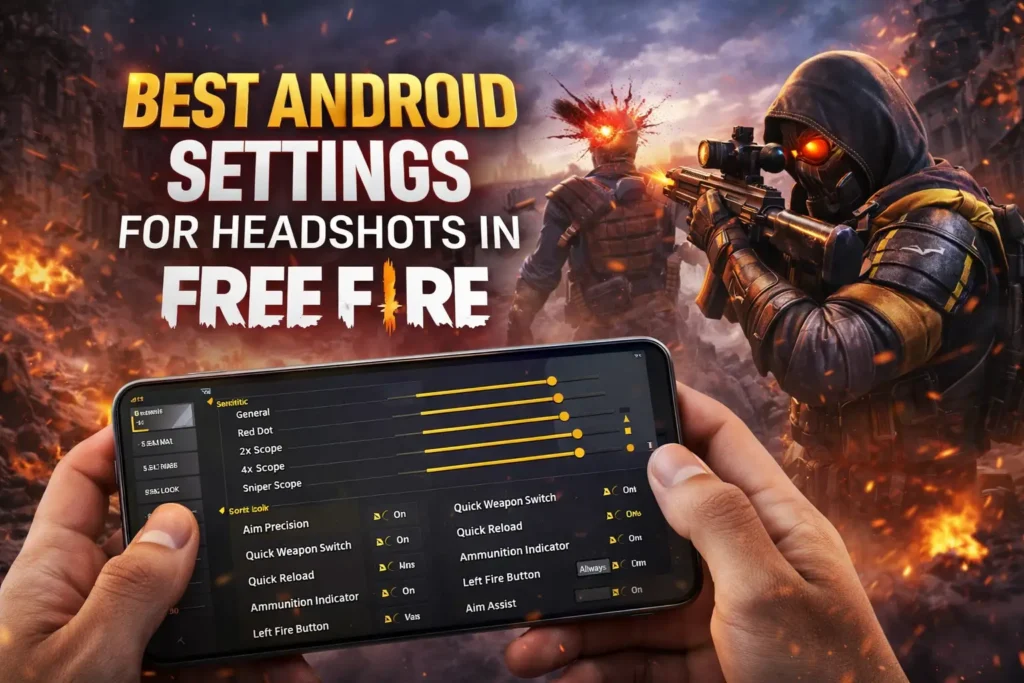
Here’s something a lot of Free Fire guides skip over: your device matters as much as your skill.
A flagship phone with 8GB RAM and a 120Hz display will respond completely differently than a budget Android running on 3GB RAM. The screen size, touch latency, and even the age of the device all change how sensitivity translates into actual gameplay.
For example, a high-end device can handle higher sensitivity values because the screen response is faster and smoother. On an older or lower-RAM device, high sensitivity causes jittery, uncontrollable camera movement — which feels like your character is having a seizure every time you turn.
This is exactly why our Free Fire Sensitivity Calculator asks for your device model, RAM, and device age before generating anything. The output is customized specifically for your phone, not some random player’s setup from YouTube.
How to Use the Free Fire Sensitivity Calculator
Using the tool on Free Fire Nation takes less than 60 seconds. Here’s exactly what to do:
Step 1 — Select Your Device Type
Choose between Android or iPhone/iOS. The underlying sensitivity algorithms differ between the two operating systems, so this step is crucial.
Step 2 — Choose Your RAM Capacity
The tool offers four RAM brackets:
- 2GB – 4GB (Low End)
- 4GB – 6GB
- 6GB – 8GB
- 8GB+ (High End)
If you’re not sure how much RAM your phone has, go to Settings → About Phone → RAM (on Android) or check your iPhone model specs online.
Step 3 — Select Your Device Age
Pick from New, Used, Old, or Very Old. An older device — even with decent RAM — tends to have slower touch response and may need lower sensitivity to stay accurate.
Step 4 — Hit “Generate Settings”
The calculator instantly produces five optimized values:
- General
- Red Dot
- 2x Scope
- 4x Scope
- Sniper Scope
Step 5 — Apply Them In-Game
Open Free Fire → Settings → Sensitivity → Replace your current values with the ones generated. Jump into a training mode match and test them for a few minutes before going competitive.
Understanding Your Generated Sensitivity Values
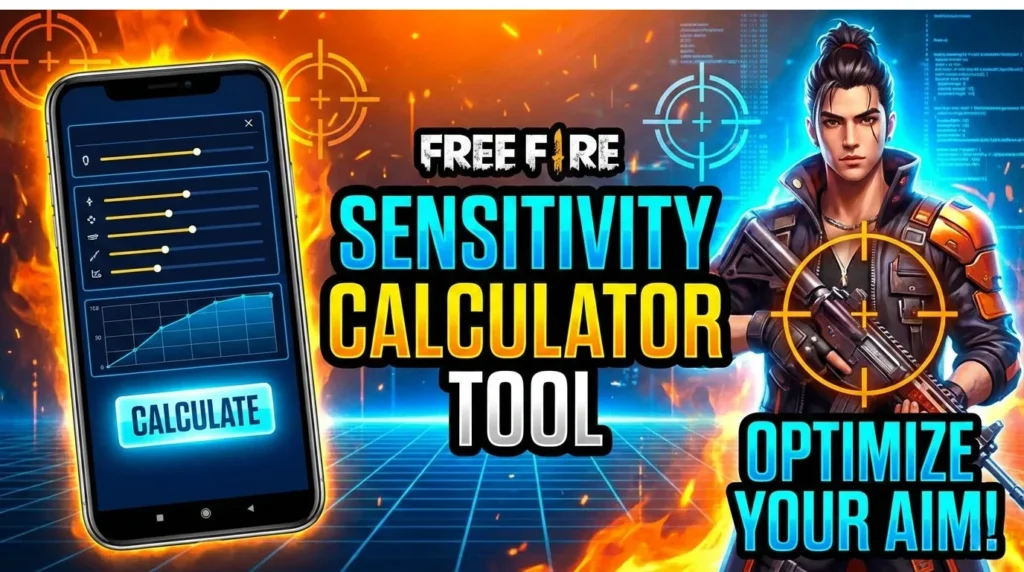
Once you get your results, here’s what those numbers mean in practice:
General (usually 80–100 for mid-range devices): This affects how smoothly you rotate and navigate the map. Too high and you’ll accidentally change direction; too low and rotating feels sluggish.
Red Dot (usually 60–80): Red dot fights are usually close-range, fast-paced encounters. A moderate sensitivity here lets you track moving targets without overshooting.
2x Scope (usually 50–70): Medium range. You want to balance speed and control here. Most players do well with values in the 55–65 range.
4x Scope (usually 30–50): Precision matters more at this range. Lower values give you steadier aim for chest and headshots.
Sniper Scope (usually 10–30): For long-range sniping, you need the lowest sensitivity. One small swipe at high sensitivity equals a massive camera movement — a miss from 200 meters.
Real-World Example: How Sensitivity Changes Gameplay
Let’s say you’re playing on a Redmi Note 12 with 6GB RAM. You’ve been using a sensitivity of 100 across all scopes because you saw a pro streamer use it. Here’s what’s actually happening:
When you try to snipe, your crosshair flies past the target before you can click. In close range, you’re fine — but the moment someone camps at distance, you miss every shot.
After using the Free Fire Sensitivity Calculator, your Sniper Scope drops to around 18–22. Your 2x drops to 58. Suddenly, your sniper shots start connecting, and mid-range fights feel stable. That’s not a coincidence — that’s properly matched sensitivity.
Pro Tips to Get Even More From Your Sensitivity Settings
Getting the right numbers is just the start. Here are a few habits that top players use alongside tuned sensitivity:
Train in Custom Rooms First: Don’t take fresh settings into ranked matches. Spend 10–15 minutes in training mode adjusting to the new feel before going competitive.
Test Across All Scopes: Fire a few shots with each scope setting. The 4x and sniper scopes feel most different from your defaults, so pay extra attention there.
Use the Auto-Aim Feature Carefully: Free Fire’s built-in auto-aim can conflict with certain sensitivity ranges. If you feel “stuck” tracking targets, consider reducing General sensitivity by 5–10 points.
Revisit After Updates: Garena occasionally changes how touch input is processed in major updates. After big patches, re-run the calculator to make sure your settings are still optimal.
Match Your Grip Style: If you play with one thumb, lower sensitivity across the board. If you use claw grip or two thumbs, slightly higher sensitivity values work better for faster reaction time.
Frequently Asked Questions About Free Fire Sensitivity
Q: Is the Free Fire Sensitivity Calculator accurate for all phones? The calculator is built using performance benchmarks from a wide range of Android and iOS devices. While it won’t be perfect for every device ever made, it’s far more accurate than copying settings from a random source. Always fine-tune by 5–10 points based on personal feel after applying.
Q: Should I use the same sensitivity for ranked and casual play? Yes — always use the same settings. Constantly switching between different sensitivities prevents your muscle memory from building up, which is what actually makes you accurate over time.
Q: My sensitivity feels off even after using the calculator. What should I do? Start by reducing General sensitivity by 10 points and test again. If scoped shots feel shaky, lower the specific scope sensitivity by 5–8 points. Small incremental changes work better than big jumps.
Q: Does phone temperature affect sensitivity feel? Yes, it genuinely does. When your phone overheats, the processor throttles performance, which can cause input lag and make even well-tuned sensitivity feel sluggish. Take breaks and avoid playing while charging.
Q: Can I use these settings on an emulator? The calculator is designed for mobile play. Emulator sensitivity behaves very differently due to mouse and keyboard input — those settings need a completely different approach.
Why Free Fire Nation’s Calculator Is Different
There are plenty of “sensitivity guides” online, but most of them either give you one set of numbers for everyone or just copy what a pro player uses on their ₹80,000 flagship phone.
Our Free Fire Sensitivity Calculator at Free Fire Nation is purpose-built for real players on real devices — from budget Androids to the latest iPhones. It’s fast, free, and actually takes your hardware into account.
And if you want to go deeper into improving your game, check out our guide on How to Increase Headshot Rate in Free Fire — because great sensitivity is only half the equation.
Authoritative References
- Garena Free Fire Official Site — Official game settings and patch notes
- Android Developer Documentation on Touch Input — Technical reference for how Android handles screen input
- Apple iPhone Specifications — Find your iPhone’s RAM and display specs for accurate calculator inputs
Final Thoughts — Stop Guessing, Start Winning
If you’ve been copying sensitivity settings from YouTube or just leaving them at default, you’ve been leaving performance on the table. The right sensitivity settings won’t give you a robot’s aim, but they remove the friction between your instincts and what happens on screen.
Use the Free Fire Sensitivity Calculator, spend 15 minutes practicing with the new values, and you’ll notice the difference in your very next match.
Good aim doesn’t come from luck — it comes from the right setup.