
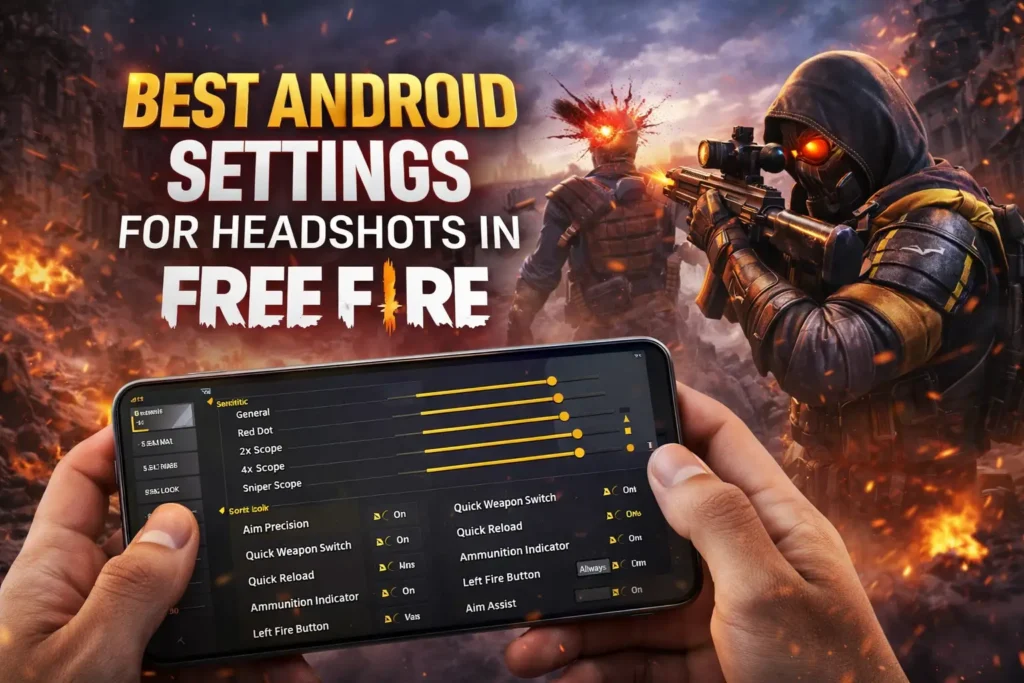
Best Android Settings for Headshots in Free Fire
Dominate the battlefield with the perfect setup. In Garena Free Fire, landing consistent headshots isn’t just about skill—it’s about having the right settings. Whether you are using a budget Android device or a high-end flagship, optimizing your sensitivity and HUD can turn you from a novice into a “One-Tap” master.
In this guide, we break down the best sensitivity, DPI, and control settings to help you lock onto enemies instantly.
1. Why Sensitivity Matters
The core mechanic of a headshot in Free Fire is the “Drag.” You need to drag your fire button upwards to pull the aim from the enemy’s chest to their head. If your sensitivity is too low, the crosshair gets stuck on the chest. If it’s too high, it flies over their head. Finding the “Goldilocks” zone is key. Total Gaming (Ajjubhai)
2. Best Android Settings for Headshots in Free Fire
These settings are optimized for the current meta and work well on most Android devices (Samsung, Xiaomi, Realme, etc.).
General Sensitivity: 95 – 100
- Why: This controls your camera movement when you aren’t aiming down sights. You want this as high as possible to allow for quick 360-degree turns and fast wall placement (Gloo Wall).
- Pro Tip: Start at 100. If it feels too shaky, lower it by 1 point at a time until it stabilizes Best Android Settings for Headshots in Free Fire.
Red Dot: 90 – 100
- Why: The Red Dot is your default aim without a scope. High sensitivity here is crucial for close-range drag headshots (SMGs and Shotguns).
2x Scope: 85 – 95
- Why: The 2x scope is often used in mid-range combat. You need enough speed to track moving targets but enough friction to stop on the head.
4x Scope: 80 – 90
- Why: At long range, stability beats speed. Keeping this slightly lower than your 2x ensures your recoil doesn’t go wild when spraying with an AR.
Sniper Scope: 50 – 70
- Why: Sniping requires precision, not speed. A lower sensitivity helps you micro-adjust your aim to hit those AWM shots.
Free Look: 50 – 75
- Why: This is personal preference and doesn’t affect your shooting accuracy. Set it to a speed that lets you look around comfortably while running.

3. The Secret Weapon: DPI (Smallest Width)
DPI (Dots Per Inch) alters the pixel density of your screen, effectively making your touch response more sensitive. It is the secret sauce for “One-Tap” headshots Best Android Settings for Headshots in Free Fire.
How to change DPI:
- Go to Settings > About Phone.
- Tap Build Number 7 times to enable Developer Options.
- Go to System > Developer Options.
- Scroll down to Smallest Width (or Minimum Width).
Recommended DPI Settings:
- Low-End Devices (2GB – 4GB RAM): Default is usually 360. Change to 400 – 450.
- High-End Devices (6GB+ RAM): Default is usually 411. Change to 450 – 550.
⚠️ WARNING: Do not increase your DPI above 600 unless you know what you are doing. Excessive DPI can reset your phone or cause system apps to crash.
4. Optimized Custom HUD
Your settings are useless if your fingers can’t find the buttons.
- Fire Button Size: Keep it between 40% and 50%.
- Too big: You waste screen space and might misclick.
- Too small: You’ll miss the button in a panic.
- Fire Button Position: Move the fire button lower on the screen.
- Why: This gives you more thumb space to drag upwards on the screen. The more runway you have for your thumb, the easier it is to control the drag.
5. Quick Practice Routine Best Android Settings for Headshots in Free Fire
Don’t just change your settings and jump into Ranked. Muscle memory takes time to adjust. Best Android Settings for Headshots in Free Fire
- Enter the Training Grounds.
- Grab a Desert Eagle (for one-taps) and a UMP (for drag sprays).
- Practice on the stationary dummy first. Drag your fire button quickly upwards.
- Once you get the feel, move to the combat zone and practice against real players for 10-15 minutes.
Conclusion with Best Android Settings for Headshots in Free Fire
There is no “magic setting” that plays the game for you, but these optimized settings give you the best possible foundation. By combining high general sensitivity, a slightly boosted DPI, and a low-positioned fire button, you’ll find your crosshair sticking to enemy heads much more often. Lokesh Gamer Free Fire creator
Hed shot